Back for a fifth year, the Extreme Performance Series will continue the tradition of exploring some of the exciting work being done at Broadcom. The following series of blog posts is all new for 2025 and will be released starting during the week of VMware Explore.
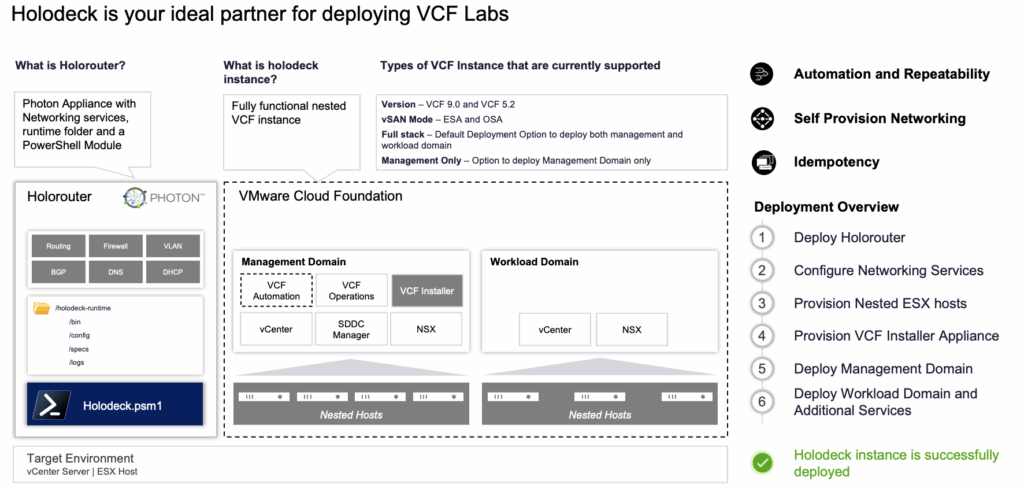
VMware Explore 2025 featured an exciting session, [CODEQT1247LV] Automagically Deploy VMware Cloud Foundation 9.0 in Homelab Using VMware Cloud Foundation Holodeck Toolkit. The presentation showcased how the VMware Cloud Foundation Holodeck Toolkit makes it easier than ever to deploy a fully functional nested VMware Cloud Foundation (VCF) 9.0 lab—in just a few commands.
For IT professionals, architects, developers, and homelab enthusiasts, this toolkit is a breakthrough. Instead of struggling with the complexity of a VCF deployment, Holodeck offers a repeatable, automated process that saves both time and effort.
What Is the VMware Cloud Foundation Holodeck Toolkit?
The Holodeck Toolkit is a PowerShell-based automation framework designed for building nested VCF environments on VMware ESXi or a vSphere cluster. It’s ideal for:
Proof-of-concept deployments
Technical demos and enablement sessions
Training environments
Hands-on testing of VCF 5.2.x and VCF 9.0 features
With just four PowerShell commands, users can deploy an entire VCF management domain and optional workload domains, complete with NSX, vCenter, SDDC Manager, and vSAN ReadyNodes.
Key Features of VMware Holodeck for VCF 9.0
The session highlighted several powerful features included in Holodeck environments:
VCF 9.0 and 5.2.x support
Management Domain with 4 nested ESXi hosts, vSAN, vCenter, NSX, and SDDC Manager
Optional Workload Domain with 3 nested ESXi hosts and Supervisor services
vSAN ESA & OSA support
NSX Edge Clusters deployable in both management and workload domains
Provision-only mode for greenfield VCF Installer + ESXi testing
Custom CIDR support for flexible network design
This makes Holodeck an ideal solution for homelabs and VCF training environments, but it is not intended for production workloads.
The HoloRouter Appliance: Backbone of the Lab
At the core of every Holodeck deployment is the HoloRouter appliance, a Photon OS–based virtual appliance that provides critical networking and infrastructure services for the nested VCF environment:
DNS, DHCP, NTP
Firewall and BGP routing
Proxy services for VCF Installer
L3 routing between nested VLANs
Webtop GUI for easy access and management
Job scheduling and automation
Integrated PowerShell + PowerCLI
The HoloRouter ensures smooth connectivity between nested VCF environments and external networks, enabling realistic lab testing.
At today’s VMware Explore general session, Chris Wolf showcased Intelligent Assist for VMware Cloud Foundation — bringing AI-powered assistance directly to our users.
Today at VMware Explore’s general session you saw Chris Wolf demonstrate Intelligent Assist for VMware Cloud Foundation, providing AI-powered assistance for our users. In this blog, we’ll take a step behind the curtain to see how these capabilities are running in VCF, using AI features that […]
Today at hashtag#VMwareExplore, Broadcom and AMD announced an expanded collaboration to deliver private, secure, and high-performance AI infrastructure for enterprises.
Artificial Intelligence (AI) is rapidly transforming industries, and Generative AI (Gen AI) is pushing the boundaries of what’s possible, creating new content and redefining value creation. However, enterprises face significant challenges in AI adoption, especially concerning privacy, data […]
VMware Private AI Services Now Included in VCF Subscription Big news from today’s VMware Explore general session with Chris Wolf 🎉 What was once sold separately is now part of the platform — VCF Private AI Services are now included in your VMware Cloud Foundation subscription.
This marks a major step forward in unleashing the power of Private AI, fueled by Broadcom and NVIDIA innovations.
Enterprises can get tremendous productivity and business transformation from AI. With VMware Private AI Foundation with NVIDIA, Broadcom and NVIDIA aim to unlock AI and unleash productivity with lower TCO. Recently with VCF 9.0, Broadcom and NVIDIA released several features in VMware Private AI Foundation with NVIDIA to further our mission of providing private and … Continued The post Unleashing the Power of Private AI: New Innovations from Broadcom with NVIDIA appeared first on VMware Cloud…Read More
The Communities Lounge is the main place for the VMware community to meet and reconnect at Explore, right at the center of the event. I like to think of it as one of the great train stations of old cities. It carries a timeless feeling: the place where journeys cross, where you meet faces […]
VMware Explore 2025 in Las Vegas Day 1 Recap | August 25, 2025 If you heard the collective buzz across the Venetian Convention and Expo Center today, that was Day 1 of VMware Explore in Las Vegas coming to life. You crushed it—140 sessions across all four tracks, endless hallway conversations, and a few “just … Continued The post VMware Explore 2025 in Las Vegas | Day 1 Recap appeared first on VMware Explore Blog.
Continuing on from the VMware Data Services Manager (DSM) 9.0 introductory videos from my most recent post, these next two videos look at how to configure VMware Cloud Foundation (VCF) Automation in VCF 9.0 with DSM to provide a true DBaaS (Database as a Service) experience to your VCF tenants […]
I hope you’re enjoying yourselves in the spectacular city of Las Vegas! While the Strip is world-famous for its casinos and neon lights, there’s so much more waiting for you beyond the roulette tables. If you find yourself with a bit of spare time, here are some gems you won’t want to miss.
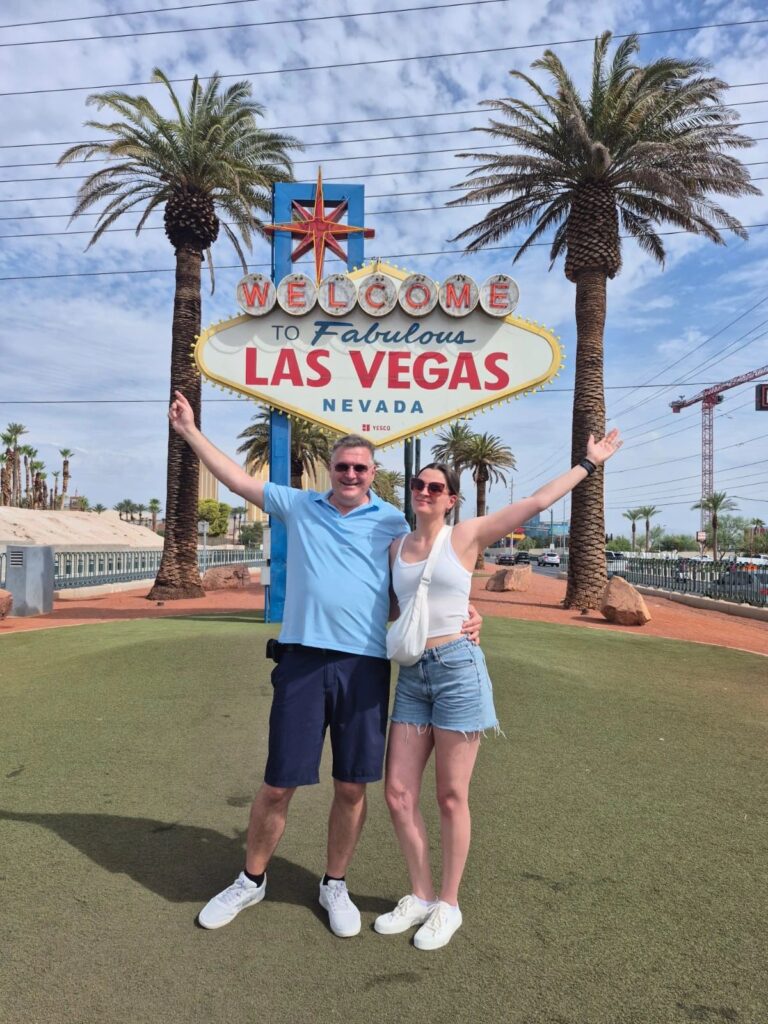
Welcome to Fabulous Las Vegas Sign
Kick off your adventure at the iconic “Welcome to Fabulous Las Vegas” sign, located at the southern end of the Strip. It’s the ultimate photo stop and a must-see landmark for every visitor. Arrive early in the morning if you’d like to beat the crowds and grab your selfie without waiting in line.
Ride the Deuce Bus Along the Strip
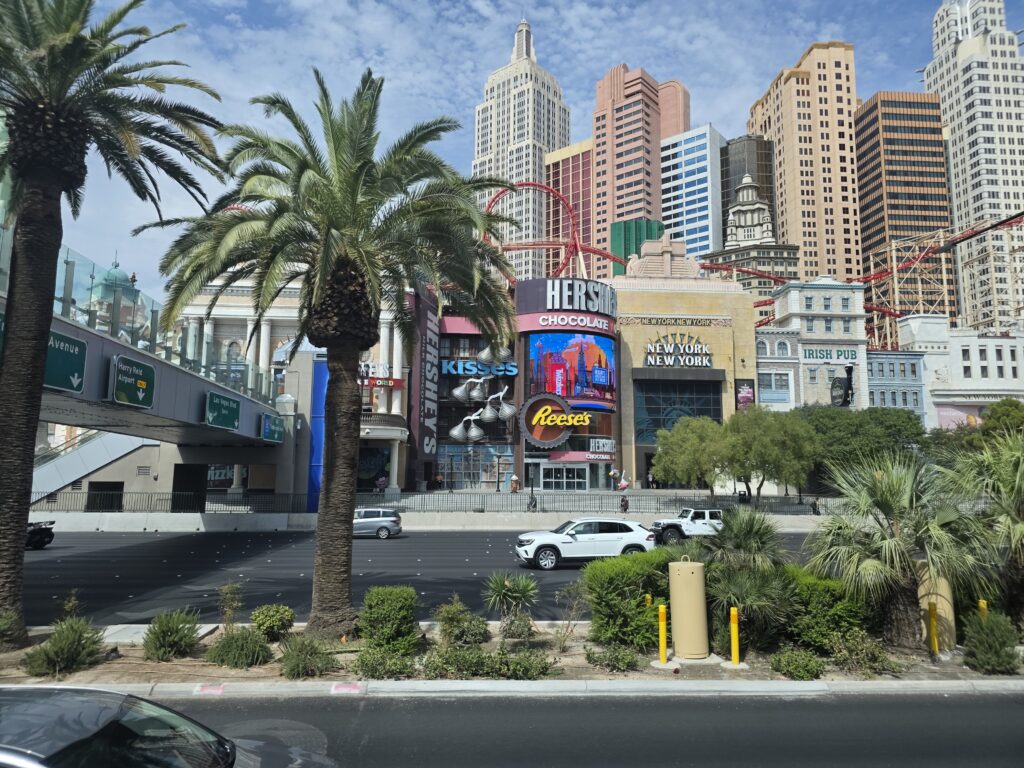
One of the easiest—and most affordable—ways to explore Las Vegas is the Deuce bus, which runs 24/7 along the Strip. For just a few dollars, you can travel all the way from the Las Vegas sign to downtown. Along the ride you’ll pass mega-resorts, quirky hidden gems, and plenty of photo-worthy spots.
💡 Tip: Tickets are simple to get—just download the RideRTC app
Downtown Las Vegas – Fremont Street
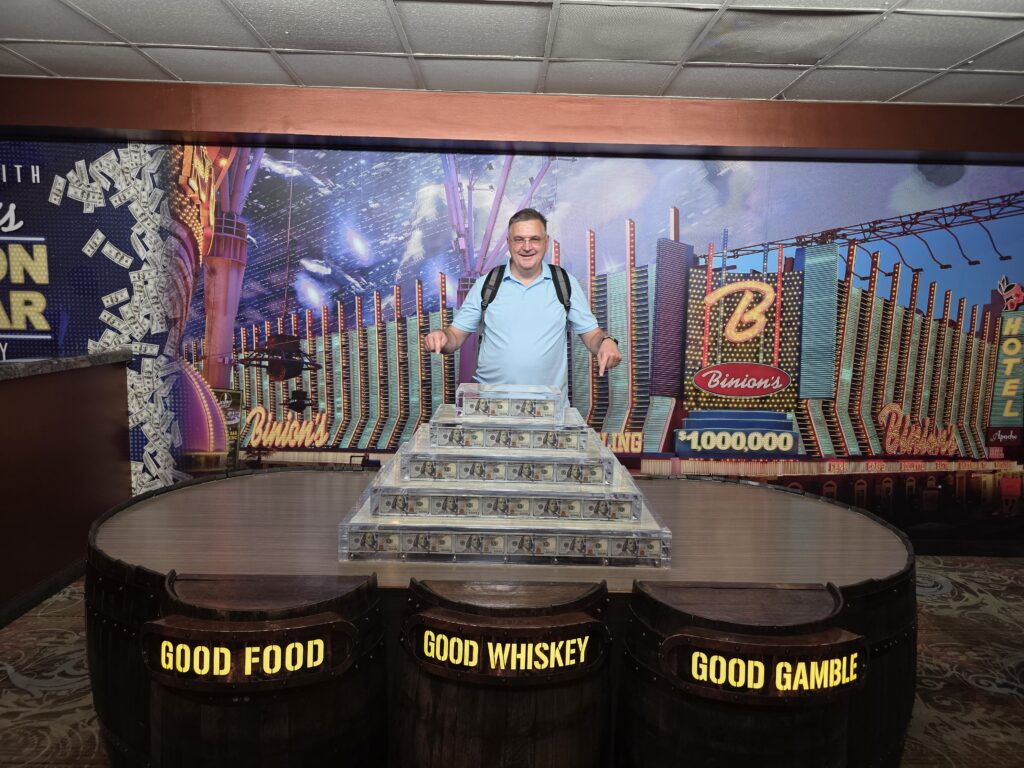
At the end of the bus ride, you’ll land in downtown Las Vegas, the birthplace of the city’s casino culture. Don’t miss Binion’s Casino, where you can take a free photo with one million dollars in cash (yes, real bills!).
By night, Fremont Street transforms into a festival of sound and light, with live music stages, street performers, and the jaw-dropping Fremont Street Experience—a massive canopy that comes alive with LED animations and booming music.
Take a Break From the Strip
When the neon starts to feel overwhelming, step into nature. Just a short drive away lies Red Rock Canyon, a breathtaking desert escape with scenic drives and hiking trails. Or head to Lake Mead, the vast reservoir created by the Hoover Dam. Whether you swim, kayak, or simply relax by the shore, it’s the perfect place to recharge away from the Strip.
Day Trips Beyond Las Vegas
Looking for a true bucket-list experience?
Grand Canyon, Arizona – Standing on its rim and gazing into its endless depths is a moment you’ll never forget.
Antelope Canyon, Arizona – If your journey takes you further east, its smooth sandstone walls, painted in red and gold, create one of the most photogenic spots on Earth.
💡 Tip: To easily browse and book tours, check out the GetYourGuide app
Now Is the Time to Explore!
Las Vegas isn’t just about entertainment—it’s a gateway to adventures, culture, and some of the most stunning natural wonders in the American Southwest. So pack your curiosity, grab your camera, and start discovering!
With the release of VMware Cloud Foundation (VCF) 9.0, Aria Operations for Logs has officially been rebranded as VCF Operations for Logs. However, if you were expecting a simple in-place upgrade, there’s an important caveat: no direct in-place upgrade is supported.
Instead, administrators must deploy VCF Ops for Logs 9.0 as a fresh installation and gradually migrate integrations and data sources from their existing Aria Ops for Logs 8.18.x environment.
Why No In-Place Upgrade?
VMware Aria Operations for Logs version 8.18.x does not support an in-place upgrade path to version 9.0. The architectural and platform changes introduced in VCF 9.0 require a clean deployment.
This means that if you are currently running Aria Ops for Logs 8.18.3, you cannot simply apply an upgrade package. Instead, both versions must temporarily coexist while you complete the transition.
Recommended Migration Approach
Broadcom’s official upgrade guidance outlines the following steps:
Deploy VCF Ops for Logs 9.0
Set up a fresh instance of VCF Ops for Logs in your environment.
Keep your Aria Ops for Logs 8.18.3 instance online, but start unconfiguring existing integrations.
This ensures that historical log data remains accessible, even though new logs will be directed elsewhere.
Reconfigure Integrations on 9.0
Point all your log sources, agents, and integrations to the new VCF Ops for Logs 9.0 instance.
Validate ingestion pipelines to confirm that logs are flowing properly.
Leverage Log Transfer if Needed
Broadcom provides guidance for log transfer, allowing you to move log data from the old environment to the new one.
Decommission the Old Instance
Once all integrations and data have been verified in the new platform, you can safely retire your 8.18.3 deployment.
Key Takeaways
Rebrand Only in Name? Not Quite. While the product name has changed from Aria Ops for Logs to VCF Ops for Logs, the lack of in-place upgrade means the transition is more than cosmetic.
Parallel Operations Are Required. You’ll need to run 8.18.3 and 9.0 side by side during the migration phase.
Fresh Deployment Is Mandatory. Treat this as a new installation rather than an upgrade.
Plan for Migration Effort. Reconfiguring all integrations and log sources can be time-intensive, so schedule accordingly.
Summary
If your organization relies heavily on VMware Aria Operations for Logs today, be prepared for a stepwise migration process rather than a straightforward upgrade. By planning the deployment of VCF Ops for Logs 9.0 carefully—and keeping the old instance online for historical data—you can ensure a smooth transition without losing valuable log visibility.
For more details, consult Broadcom’s official documentation: