Prior to upgrading VMware Cloud Foundation (VCF) you may experience a precheck error notifying you that an expected ESXi host bundle is missing. In this blog I will explain this error and how to get around it.
Tuesday, April 30, 2024 | 12:00 PM – 1:00 PM (CT) | Part 1: Introducing vSphere Foundation: The Enterprise Workload Engine. In this session, learn how VVF can boost operational efficiency, increase workload performance and improve your security posture.
vCenter 8.0 U2 logs “Privilege check failed … missing permission Sessions.TerminateSession”? Add View and stop sessions to VsmSvcRole. No restart needed.
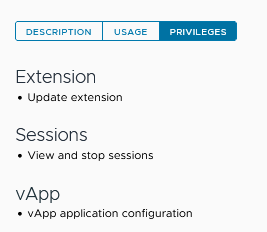
Short answer: after an upgrade to vCenter Server 8.0 U2, the Events tab can show “Privilege check failed for user VSPHERE.LOCAL\vmware-vsm-… for missing permission Sessions.TerminateSession”. The VsmSvcRole is missing the Sessions → View and stop sessions privilege. Add it under Administration → Roles and the warnings stop, with no service restart needed (KB 94967).
Introduction
Upgrading to the latest version of any software can sometimes introduce unexpected challenges. For administrators of VMware vCenter Server 8.0U2, one such issue is the appearance of privilege-related warnings in the vSphere Client. These warnings can cause concern but can be managed with the right steps.
Symptoms
After upgrading to vCenter Server 8.0U2, administrators may encounter the following warning in the vSphere Client’s Events tab: “Privilege check failed for user VSPHERE.LOCAL\vmware-vsm-… for missing permission Sessions.TerminateSession.”
This warning is flagged when the system checks the permissions associated with the VsmSvcRole role assigned to the solution user account.
Cause
The core of this issue lies in the permissions set for the VsmSvcRole. Despite having several default privileges, it lacks the “Sessions.TerminateSession” permission, which is crucial for certain administrative operations within the vSphere environment.
Immediate Workaround
Until VMware releases an update to address this issue, administrators can manually adjust the role permissions to prevent these warnings. Here’s how to implement this workaround:
Log in to the vSphere Client with a user account that has administrative privileges.
Navigate to Administration > Roles.
Select the VsmSvcRole and click on EDIT.
In the pop-up window, navigate to Sessions > View and stop sessions.
Click SAVE to apply the changes. Ensure the role’s privileges now include the ability to terminate sessions.
This adjustment does not require any service restarts, making it a straightforward fix that can be implemented immediately.
Long-Term Resolution
VMware has acknowledged the issue and is working on a resolution to be included in a future software update. More info in Broadcom KB 94967; check it for the vCenter build that includes the fix.
I recently got a question from our field inquiring about the minimum vSphere privileges that would be required to either install or remove a patch (VIB/Component) from an ESXi host. The customer was interested in using PowerCLI and specifically the ESXLI interface to automate the installation […]
Reset or unlock the vCenter Server Appliance root password without a reboot using the SSO admin account, faillock/pam_tally2, and fix expired root passwords.
Short answer: On vCenter Server Appliance 6.7 U1, 7.x, 8.x and 9.x you can reset a forgotten or locked root password without rebooting, as long as you know the SSO administrator password. SSH to the appliance as administrator@vsphere.local, run shell, then sudo passwd root. If root is only locked, reset the lockout counter with faillock (8.0 U2 and later) or pam_tally2 (older). No GRUB, no downtime.
Which fix do you need?
Situation
Fix
Reboot?
Root password expired, you still know it (VAMI shows “Exception in invoking authentication handler User password expired”)
SSH or console as root and change it at the prompt. Step by step
No
Root locked after failed logins, SSO admin password known
faillock --user root --reset (8.0 U2+, 9.x) or pam_tally2 (older), see below
No
Root password forgotten, SSO admin password known
sudo passwd root from the SSO admin SSH session (below). If root is not locked, the VAMI (port 5480) logged in as the SSO admin can also change it (KB 369931).
No
Root and SSO admin passwords both unknown
GRUB procedure, KB 322247 (last section)
Yes
Requirements
SSH enabled on the vCenter appliance.
A working SSO account, typically administrator@vsphere.local (use your own SSO domain if it differs).
That account must be a member of the SystemConfiguration.BashShellAdministrators SSO group, otherwise it cannot get to the Bash shell.
If you do not know the SSO administrator password either, this method does not apply and you need the GRUB procedure described at the end.
How to reset the vCenter root password without restarting
ssh administrator@vsphere.local@vcenter.example.local

# Appliance shell (Command>): enable and enter Bash, first time only
shell.set --enable true
shell

# Set a new root password
sudo passwd root
New password:
Retype new password:
Then open a new SSH session as root to confirm the new password works before you close the admin session.
Alternative from the appliance shell
If the root account is not locked, you can stay in the appliance shell (Command>) and use the API command instead of Bash:
localaccounts.user.password.update --username root --password
# you are prompted for the new password twice
vCenter root account locked: unlock it
Too many failed logins lock root even when the password is correct. From the Bash shell of the SSO admin session, escalate and reset the counter. The command depends on the Photon OS version under vCenter:
vCenter version
Unlock command
8.0 U2 and later (Photon 4), 9.x
/usr/sbin/faillock --user root --reset
Earlier than 8.0 U2
pam_tally2 --user=root --reset
sudo -i
/usr/sbin/faillock --user root --reset   # or pam_tally2 on older builds
passwd                                   # optional: set a new password
vCenter root password expired
The default root password on the appliance expires after 90 days. If you still know the expired password, SSH in as root and you are prompted to change it. You have about 30 seconds before the authentication attempt times out, so have the new password ready. Check and adjust the policy afterwards:
Disabling expiry is a security decision. In many environments it is better to keep a policy and set a reminder, or change the policy in the VAMI (port 5480). In VCF, SDDC Manager manages the vCenter root password too, and an expired one can stop the SDDC Manager UI from loading (KB 305970). The VAMI error you see with an expired root password, and its two-minute fix, are covered in Exception in invoking authentication handler: User password expired.
When you still need a reboot (GRUB method)
Without any working SSO admin credentials, the only option is the classic console procedure from KB 322247. It needs a maintenance window:
Take a backup and a snapshot of the vCenter VM. In Enhanced Linked Mode, KB 322247 also asks for a backup or a powered-off snapshot of every replicating vCenter. Reboot it and press e in the GRUB menu.
Append rw init=/bin/bash to the line starting with linux and press F10.
Run mount -o remount,rw /, unlock root with faillock or pam_tally2, then passwd.
Run umount / and reboot -f.
If login problems remain after the reset and you suspect SSO or lookup service issues, lsdoctor is the next tool to check. Failed logins are logged in /var/log/audit/sshinfo.log.
This is the third part of a series of blogpost related to the NSX technology, relative version 4.xYou can find other blogpost from this series here: – Part 1 NSX […]
Hello There, Recently , we faced an issue in our NSX-T envrironment running with 3.2.x version. We saw below error message while running the pre-check for NSX upgrade to 4.x version. “Edge node 31c2a0ba-e10a-48eb-940d-85f1e48c811f vmId is not found on NSX manager” […]
In this blog post, we’ll dive into the common pitfalls and challenges that users face when trying to upgrade vCenter with vCHA enabled. We’ll discuss the potential causes of the failure, troubleshooting tips, and possible solutions to get your upgrade back on track.
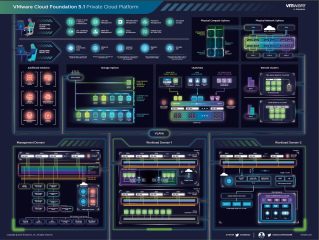
I’m proud to present the latest VMware Cloud Foundation posters. Back by popular demand, the posters are done in a dark format (my personal favorite) and a light format. Each poster features the art of what’s possible with VMware Cloud Foundation 5 Private Cloud Platform.