VCF 9 SAP HANA Network Design: Why 6 NICs Matter for vMotion and NFS

SAP HANA on VCF 9 with NFS: why storage needs its own NICs, separate from vMotion. The 2, 4 and 6 NIC models compared on Cisco VIC and HPE Synergy.

Short answer: on VCF 9 hosts that run SAP HANA on NFS, give storage its own pair of physical NICs (vNICs on Cisco UCS), separate from vMotion. The VCF 9.1 Design Library’s 6‑NIC Storage and Workload Separation model does this and also isolates NSX workloads, so I recommend it as the baseline. The 4‑NIC Storage Separation model also isolates NFS storage, but it puts SAP client traffic on the same switch as vMotion. The reason is host maintenance. A vMotion of a 2 TB HANA VM lands on the same receive queues as the NFS log writes of every HANA database on that host, unless storage has a vNIC of its own. HANA commits wait for those log writes. A faster adapter does not change that, and VCF 9 makes it worse by allowing only one vMotion VMkernel adapter per host. You can watch all of it happen in an interactive model: vdan.cz/vcf9-sap-hana-tdi-design.

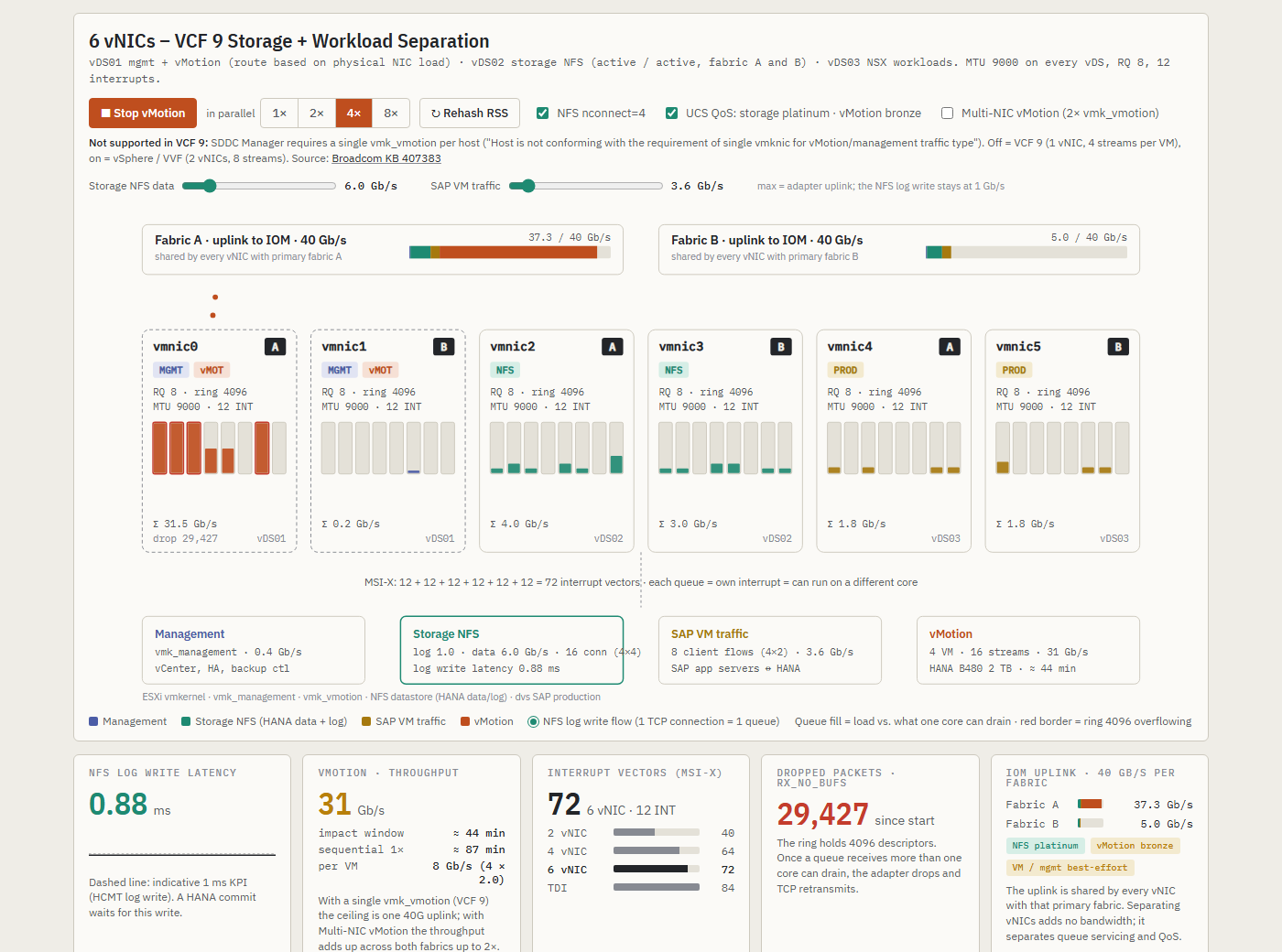
VCF 9 SAP HANA 6-NIC network model: four parallel vMotions on vmnic0 while the NFS log write on vDS02 stays under 1 ms
6 vNICs, four HANA VMs migrating at once. vMotion saturates vmnic0, the storage vNICs on vDS02 carry only the 16 NFS connections of those four VMs, and the log write stays under 1 ms.

Why vMotion is a HANA problem and not just a network problem

HANA writes its redo log synchronously. A transaction commit returns only after storage has acknowledged the log write, so log write latency turns directly into application response time. The SAP HCMT tool checks this, and the indicative KPI for log write latency is about 1 ms. Under normal load a well built NFS path delivers a few hundred microseconds.

Now migrate a HANA VM with 1 to 2 TB of RAM. On a 40 Gb/s uplink a vMotion runs at 16 to 35 Gb/s for 10 to 20 minutes, including the dirty page iterations at the end. If that traffic shares the network path with storage, the log write latency jumps from sub‑millisecond to several milliseconds, commits stall, and the application servers see timeouts. This is why SAP and the FlexPod CVD separate vMotion from storage in the first place. The interesting part is where the sharing happens, because it is not only bandwidth.

What happens inside the adapter

On a Cisco UCS blade with a VIC, every vNIC in the service profile gets its own set of receive queues. The adapter policy used in the FlexPod TDI design gives each vNIC on a VIC 1380 8 receive queues with a ring of 4096 descriptors and 12 MSI‑X interrupts. On a VIC 15231 the policy is 16 queues, a ring of up to 16384 and 20 interrupts. Three details matter:

  • The adapter spreads incoming flows across the queues with an RSS hash of IP addresses and ports. It does not know what a flow is. One NFS log connection always lands on exactly one queue.
  • Each queue has its own interrupt and is serviced by one CPU core. A queue that receives more than its core can drain fills its ring and the adapter drops packets. That shows up as rx_no_bufs in esxcli network nic stats.
  • Queues belong to the vNIC. Two vNICs on the same physical adapter never compete for queues or cores. They share only the uplink to the IOM or IFM, and that is where QoS can help.

So if vMotion streams and the NFS log flow arrive on the same vNIC, the hash will sooner or later put a vMotion stream on the queue that also carries the log write. Network I/O Control cannot see that. NIOC shares bandwidth between port groups on the uplink, it does not assign queues. Only a separate vNIC does.

One remark for readers on HPE Synergy. The Synergy 6310C is a Broadcom NetXtreme‑E adapter (ESXi driver bnxtnet). A port is split into up to eight FlexNICs that share the ASIC’s pool of queues and interrupt vectors, and RSS defaults to 4 queues per function. A FlexNIC is still a separate function with its own RSS, so the storage FlexNIC does not receive vMotion packets, but the queues behind it are not dedicated in the way a Cisco VIC vNIC’s are, and there are fewer of them. The model treats it that way and I come back to it below.

The four layouts

I modelled the three VCF 9.1 network models and the classic FlexPod TDI layout side by side. Same host, same VIC 1380 with 2 × 40 Gb/s, same traffic: NFS log 1 Gb/s, NFS data 6 Gb/s, SAP client traffic 3.6 Gb/s and management. Every HANA VM on the host mounts its data and log with nconnect, so it brings four NFS connections and two client flows of its own. The number of VMs is the parallel selector: with four VMs the storage class has 16 NFS data connections and the VM class 8 flows, with eight VMs 32 and 16. Then those one to eight HANA B480 VMs with 2 TB RAM are migrated at once. The VCF 9 rows use the single vMotion VMkernel adapter VCF 9 allows, the TDI row uses Multi‑NIC vMotion as the CVD configures it. The numbers are model output, not measurements. The model exists to show the mechanism.

LayoutvNICsStorage isolated from vMotionLog write · idle1× vMotion4× vMotion8× vMotion
VCF 9 Single Distributed Switch2no0.34 ms1.82 ms2.37 ms3.49 ms
VCF 9 Workload Separation4no0.34 ms1.82 ms2.26 ms3.49 ms
VCF 9 Storage + Workload Separation6yes0.34 ms0.35 ms0.88 ms0.83 ms
FlexPod SAP HANA TDI (Multi‑NIC vMotion)7yes0.34 ms0.35 ms0.89 ms0.84 ms

The split is clean. The two layouts that put vMotion and storage on the same vNIC cross the 1 ms KPI with a single migration. The two that give storage its own vNIC stay under it with eight. What remains in the 6 and 7 vNIC rows has two parts: uplink pressure, which is what the UCS QoS policy is for, and the fact that eight VMs bring 32 NFS data connections into the 16 storage queues, so the log flow starts sharing a queue with data connections of other databases. That second part is the argument for more queues on the storage vNIC, and I come back to it with the VIC 15231.

2 NICs: Single Distributed Switch

One vDS, everything on two uplinks, NIOC with storage and VMs at High and vMotion at Low, MTU 9000. It is the simplest model to run and the worst one for HANA. All four traffic classes hash into the same queues of the same vNIC. NIOC holds vMotion at the uplink limit, the queue collision remains.

VCF 9 Single Distributed Switch model with 2 vNICs: vMotion streams overflow the receive queues shared with the NFS log
2 vNICs, four migrations. All 16 vMotion streams enter through vmnic0, they sit in the same queues as the NFS log and the 16 data connections, the rings overflow and the log write is at 2.4 ms.

4 NICs: Workload Separation

Two vDS. The NSX workloads get their own pair, which is good for the VMs. Management, vMotion and storage still share vDS01, so for the HANA log it changes almost nothing. The numbers are within hash luck of the 2‑NIC model. Note the greyed out QoS switch in the screenshot: UCS assigns a QoS class per vNIC, so storage and vMotion on one vNIC cannot be told apart on the uplink either.

VCF 9 Workload Separation model with 4 vNICs: vMotion and NFS log traffic share the same receive queues on vDS01
4 vNICs, four migrations. vDS02 is quiet, vDS01 carries vMotion and the NFS log in the same queues.

4 NICs the other way: Storage Separation

The Design Library also has a 4‑NIC Storage Separation Distributed Switch Model. It uses the same two vDS as Workload Separation but splits them differently: one vDS is dedicated to storage, and the other carries everything else (management, vMotion and workloads). The Design Library lists it for NFS as well as vSAN, so it is a valid option for NetApp NFS datastores. I did not simulate this layout, so it has no row in the table. By the mechanism described above, it protects the HANA log write the way the 6‑NIC model does, because the storage vNICs never receive vMotion packets. It is still not the layout I recommend for HANA. The SAP application server traffic on the NSX segments now shares a vDS, its uplinks and its receive queues with vMotion, so every host evacuation affects the client path instead of the log. If a host has only four ports, Storage Separation is the better of the two 4‑NIC models, but plan for six.

6 NICs: Storage and Workload Separation

Three vDS on three NIC pairs. vDS01 carries management and vMotion, vDS02 carries storage on both uplinks active/active, vDS03 carries the NSX workloads. Storage now has its own pair of vNICs on both fabrics, its own queues and cores and its own UCS QoS class. vMotion shares a pair only with management, which is negligible traffic. The log write stays under 1 ms with eight parallel migrations. What moves the number from 0.35 to about 0.9 ms is not vMotion at all, it is the 32 NFS data connections of eight databases sharing 16 queues with the log flow. This is the layout I would make the baseline for any VCF 9 cluster that hosts HANA.

VCF 9 Storage and Workload Separation model at idle: NFS log and data connections spread over vmnic2 and vmnic3
6 vNICs at idle with one HANA VM. The NFS log and the four data connections spread over vmnic2 and vmnic3, so storage has 16 queues on two fabrics and nothing else in them.

7 NICs: FlexPod SAP HANA TDI

The Cisco CVD layout goes one step further and gives management its own vNIC as well, and it runs vMotion with two VMkernel adapters on two vNICs. A 2 TB VM then migrates in about 11 minutes instead of 22. For the HANA log it behaves like the 6‑NIC layout, because the storage vNICs are separate either way. If you build on FlexPod without VCF, use it. If you build on VCF 9, the 6‑NIC model gets you the same protection for HANA with one vNIC template less.

FlexPod SAP HANA TDI layout with 7 vNICs and Multi-NIC vMotion across both fabrics
7 vNICs per the FlexPod CVD, four migrations with Multi‑NIC vMotion. The streams spread over vmnic1 and vmnic2 on both fabrics, the storage vNICs carry only NFS.

QoS and NIOC are two different things

Separate vNICs alone are not enough. The uplink is still shared, and four parallel migrations will fill it. With a UCS QoS policy that puts the storage vNIC in the platinum class and vMotion in bronze, storage keeps its bandwidth and the log stays under 1 ms. Without it, vMotion takes the whole uplink and even the TDI layout ends up above 4 ms.

FlexPod TDI layout with eight vMotions and UCS QoS disabled: the shared uplink raises NFS log latency
The same TDI layout, eight migrations, QoS off. The queues are still isolated, the uplink is not.

The reverse holds as well. NIOC on the 2 and 4‑NIC models does protect bandwidth, and the model gives it credit for that, but it cannot protect queues. You need both: a vNIC of its own for storage, and a QoS class of its own on the uplink.

Multi-NIC vMotion is currently not supported by VCF 9.x SDDC Manager workflows

On plain vSphere you would give vMotion two VMkernel adapters on two uplinks, so a migration can use both fabrics. vSphere and VVF support Multi-NIC vMotion, but VCF 9.x SDDC Manager requires exactly one VMkernel adapter tagged for vMotion per host. When a host has a second one, SDDC Manager flags it after an inventory sync with the message “Host is not conforming with the requirement of single vmknic for vMotion/management traffic type”. The fix is to remove the second adapter and re-run host commissioning. Broadcom KB 407383 describes the issue. It notes that hosts with multiple vMotion adapters reach far lower vMotion concurrency in VCF 9.x than in vSphere 8.x, and that Load-based Teaming on the single vMotion VMkernel adapter is the exception to that limit.

For HANA hosts this has two consequences. A single migration gets only half the stream helpers and one 40 Gb/s path, about 16 Gb/s in the model, so a 2 TB VM takes about 22 minutes instead of 11. And on the 2 and 4‑NIC layouts every one of those streams enters through the single vNIC that also carries the NFS log, which is why the table above shows the KPI broken from the first migration. The simulator has a Multi‑NIC vMotion switch so you can compare both cases. It is off by default because that is what VCF 9 gives you.

Parallel vMotion during maintenance

vSphere allows up to eight concurrent vMotions per host. With one vMotion adapter on a 40 Gb/s uplink, one 2 TB HANA VM uses about 16 Gb/s and takes about 22 minutes. Two in parallel fill the uplink at about 31 Gb/s and still finish in about 22 minutes, so the second one is free. From there on more parallelism buys nothing: four VMs take about 44 minutes and eight about 89 minutes, the same as running them two at a time. What grows is the impact window on the shared layouts, because every additional VM puts more vMotion streams into the queues the log flow lives in. When you evacuate a host with HANA VMs on VCF 9, two at a time is the sensible limit.

Does a faster adapter fix it?

The first question I got after showing the model was whether a 100 Gb/s adapter makes the discussion go away. The simulator now has three adapters to switch between: the Cisco VIC 1380 with 2 × 40 Gb/s, the Cisco VIC 15231 with 2 × 100 Gb/s and 16 receive queues per vNIC, and the HPE Synergy 6310C with 2 × 50 Gb/s. The table shows the 2 vNIC and 6 vNIC layouts on each, single vMotion adapter, UCS or NIOC bandwidth protection on.

AdapterLayoutIdle1× vMotion4× vMotion8× vMotion2 TB VM, one migration
Cisco VIC 1380 · 2 × 40G · RQ 82 vNIC0.34 ms1.82 ms2.37 ms3.49 ms16 Gb/s · ≈ 22 min
6 vNIC0.34 ms0.35 ms0.88 ms0.83 ms
Cisco VIC 15231 · 2 × 100G · RQ 162 vNIC0.27 ms1.74 ms4.98 ms3.42 ms32 Gb/s · ≈ 11 min
6 vNIC0.27 ms0.27 ms0.71 ms0.71 ms
HPE Synergy 6310C · 2 × 50G · RSS 42 vNIC1.81 ms3.92 ms18.44 ms40.17 ms16 Gb/s · ≈ 22 min
6 vNIC0.34 ms0.34 ms0.87 ms0.87 ms

The VIC 15231 halves the migration time and the wider ring drops far fewer packets, but on the 2 vNIC layout the log write still sits well above the KPI from the first migration. Bandwidth was never the only problem. The vMotion streams still land in the same queues and on the same cores as the log flow, and at 8 Gb/s per stream they fill a core faster than before. On the 6 vNIC layout the 15231 is better in every column, and the 16 storage queues per vNIC are exactly what the 32 NFS connections of eight databases need.

Cisco VIC 15231 with 2 vNICs: vMotion still shares receive queues with the NFS log flow
2 vNICs on a VIC 15231, four migrations. Sixteen queues, a ring of 16384 and a 100G uplink. The vMotion streams still share queues with the NFS log flow, log write at 5.0 ms.
Cisco VIC 15231 with 6 vNICs: four vMotions at 87 Gb/s with the storage vNICs untouched
6 vNICs on a VIC 15231, four migrations at 87 Gb/s. The storage vNICs are untouched and the impact window shrinks to about 16 minutes.

The Synergy 6310C is the other direction. With four RSS queues per FlexNIC, the 2 vNIC layout is above the KPI before any vMotion starts: the log flow of a single HANA VM already shares its queue with NFS data and client traffic. Every migration then lands in the same four queues, and at four and eight migrations the model’s latency formula runs off the scale, so take the direction from those cells and not the digits. The 6 vNIC layout still protects the log, because the storage FlexNIC never sees vMotion packets, but the headroom is smaller than on either VIC. If you run HANA on Synergy, raise the RSS queue count of the storage function from the default and give storage its own FlexNIC pair in Virtual Connect with a bandwidth minimum.

HPE Synergy 6310C with 2 vNICs: four RSS queues per FlexNIC carry vMotion next to the NFS flows
2 vNICs on a Synergy 6310C, four migrations. Four queues per FlexNIC, every one of them carries vMotion next to the NFS flows, and the log write is at 18.4 ms in the model.

Lifecycle note for the VIC 1380: Broadcom KB 391170 lists the UCS VIC 1340 and VIC 1380 as Restricted in ESX 9.0, under both nenic and nfnic. They still work on 9.0 and stay listed in the compatibility guide, but they get no new features or driver enhancements and only best-effort fixes, and Restricted devices are removed in the next major release. The VIC 15231 isn’t in either the Restricted or the End of Life list. If you are planning new HANA hosts for VCF 9, start from the 15231, and check your exact adapter and firmware in the Broadcom Compatibility Guide. The full list is on ESXi 9.0 – Deprecated and unsupported devices.

What I recommend

  • For HANA hosts on VCF 9, use the 6‑NIC Storage and Workload Separation model. If a host has only four ports, Storage Separation is better than Workload Separation because it keeps the NFS log away from vMotion, but SAP client traffic then shares the path with vMotion, so plan for six. On FlexPod without VCF, keep the 7‑vNIC TDI layout from the CVD.
  • Put the storage vNICs in a platinum QoS class in UCS and vMotion in bronze. NIOC is not a substitute on the uplink, and it is no help at all in the queues.
  • Do not buy a faster adapter to avoid the layout decision. A VIC 15231 shortens the maintenance window, it does not separate the queues. Where it does pay off is the storage vNIC: 16 queues for the NFS connections of many databases on one host.
  • Mount HANA data and log with nconnect, or with several mounts. One TCP connection is one queue and one core. Count the connections: eight databases with nconnect=4 are 32 data connections plus their log flows on the storage vNIC.
  • Limit concurrent HANA vMotions per host to two during maintenance windows. With the single vMotion adapter VCF 9 allows, two migrations fill the uplink and a third one only stretches the window.
  • Run HCMT at idle and during a vMotion of one and two HANA VMs, and keep the result as a baseline. On a performance ticket SAP and Broadcom ask about deviations from best practice first.
  • Watch rx_no_bufs on the storage vNICs. If the counter increases during the test, the receive ring is being exhausted. Correlate this with per-queue statistics and traffic load before attributing the drops to RSS/queue contention.

Try it yourself

The interactive model is on this site: vdan.cz/vcf9-sap-hana-tdi-design. You can switch between the four layouts and the three adapters, set one to eight HANA VMs and migrate them in parallel, toggle the UCS QoS policy, nconnect and Multi‑NIC vMotion, move the NFS data and SAP client traffic sliders up to the adapter’s line rate, and re‑roll the RSS hash to see how much of the effect is luck. The numbers update live, including the log write latency, the number of NFS and client connections per layout, the interrupt vector count and the dropped packets on the rings. It is available in Czech and English.

A word on the model: queue capacity, stream rates and the latency formula are illustrative and documented on the page. They are there to explain why the layouts behave differently, not to replace a measurement on your own hardware.

Related on vdan.cz

Sources

Cisco UCS 4.3(5a) Security Fixes: OpenSSH regreSSHion (CVE-2024-6387), libexpat, and What Came After

Cisco UCS 4.3(5a) security fixes: CSCwk62264, CSCwk62723 (OpenSSH CVE-2024-6387) and CSCwk75392 (libexpat), plus later 4.3 fixes up to 4.3(6j).

Cisco UCS Manager 4.3 release notes: security fixes section

Short answer: Cisco UCS 4.3(5a), released 22 October 2024, lists three security fixes in the current UCS Manager 4.3 release notes. CSCwk62264 covers OpenSSH “regreSSHion” (CVE-2024-6387) on 6400/6500 Fabric Interconnects in UCS Manager mode. CSCwk62723 covers the same CVE in Serial over LAN on B-Series and X-Series. CSCwk75392 covers libexpat CVE-2023-52425 in UCS Manager. Later 4.3 releases add more fixes; 4.3(6j) is the newest.

Cisco UCS 4.3(5a) security fixes

Defect IDAffected componentCVEWhat it is
CSCwk62264UCS 6400 and 6500 Series Fabric Interconnects in UCS Manager modeCVE-2024-6387OpenSSH sshd signal-handler race (a regression of CVE-2006-5051). An unauthenticated remote attacker can trigger it by not authenticating within the login grace time.
CSCwk62723UCS B-Series blade servers and X-Series compute nodes, Serial over LAN (SOL)CVE-2024-6387The same OpenSSH issue in the SOL component used for remote console access
CSCwk75392Cisco UCS ManagerCVE-2023-52425libexpat through 2.5.0: denial of service (resource consumption) when a large token needs many full reparsings

For every entry, Cisco uses the same wording: the affected third-party component “has been upgraded to a version that includes fixes for the vulnerability”. None of the three has a configuration workaround listed. The fix is the upgrade.

What changed since my original post

  • My October 2024 version also listed CSCwb81661 (OpenSSL CVE-2021-4160, CVE-2022-0778, CVE-2022-1292) under 4.3(5a). The current release notes do not list that defect in the 4.3(5a) section. CVE-2022-0778 appears under 4.3(2c) as CSCwh46667.
  • CVE-2024-6387 is also listed under 4.3(4c) as CSCwk62264 for “Cisco UCS Manager”. So the OpenSSH fix arrived in two steps: UCS Manager in 4.3(4c), and the Fabric Interconnect and SOL components in 4.3(5a).

Security fixes after 4.3(5a)

Upgrading to 4.3(5a) alone is no longer enough. These are the later 4.3 security fixes, from the same release notes:

ReleaseDefect IDScope
4.3(5c)CSCwm73573Intel CPU and firmware CVEs on C-Series M7 and X-Series M7 (for example CVE-2024-27457, CVE-2024-23918, CVE-2024-21820)
4.3(5d)noneNo security fixes
4.3(6a)CSCwm82813, CSCwm73565A large set of OpenSSL CVEs in UCS Manager third-party software, and CVE-2024-28047 (Intel UEFI) on M5 servers
4.3(6c)CSCwo49706, CSCwo49702, CSCwo49711Intel CVE-2024-45332 on M5/M6, plus CVE-2025-20103 and CVE-2025-20054 on M7
4.3(6d)CSCwq36167Intel CVE-2025-20067 on M6, and CVE-2025-21096, CVE-2025-20053, CVE-2025-24305, CVE-2025-20613, CVE-2025-21090, CVE-2025-22853 on M7
4.3(6f)CSCwn23026, CSCwm68934UCS Manager’s own vulnerabilities: CVE-2023-20077 (command injection by an authenticated admin) and CVE-2023-20076 (privilege escalation from read-only CLI)
4.3(6b), 4.3(6e), 4.3(6g), 4.3(6h), 4.3(6i)noneNo security fixes

Which Cisco UCS 4.3 release to run now

  • Newest 4.3 release: 4.3(6j), added to the release notes on 24 September 2026. Cisco also publishes UCS Manager 6.0 release notes.
  • Avoid 4.3(4a) to 4.3(4d): Cisco has deprecated them and removed their firmware files, and recommends 4.3(4e) or later. See FN74201 (UCS Manager inaccessible after upgrade with integrated S3260) and FN74209 (vFC interfaces may flap). FN74209 lists 4.3(4e) and 4.3(5a) as fixed releases.
  • Cisco publishes no single “recommended” 4.3 build in the release notes. Pick the newest release that supports your server generations, VIC firmware and ESXi drivers, and follow the upgrade path tables in the release notes. Per the 4.3(6) table, you can upgrade directly from any 4.3(x), 4.2(2) or 4.2(3) release, and from 4.2(1i) or a later 4.2(1) patch.

Upgrade order for a UCS domain

  1. Check the upgrade path table for your current release in the 4.3 release notes.
  2. Upgrade the infrastructure A bundle (UCS Manager, NX-OS on the Fabric Interconnects, IOM and FEX firmware). This carries the UCS Manager and FI fixes such as CSCwk62264 and CSCwk75392.
  3. Upgrade the server bundles (B/C/X) through host firmware packages. The SOL fix (CSCwk62723) and the Intel CPU/BIOS fixes are server-side components. Put each ESXi host into maintenance mode first.
  4. Update the ESXi nenic/nfnic drivers to the versions that match the new VIC firmware.

Sources

Related on vdan.cz

CSCwj01478: UCSX-9508 PSU Shows “Power: Error” in UCS Manager (Fixed in 4.3(4a))

Cisco bug CSCwj01478: UCSX-9508 PSUs show Power: Error and Input Source: Unknown in UCSM. Affected from 4.3(2b), fixed in 4.3(4a), workaround.

Cisco UCS Manager 4.3 release notes: resolved caveats

Short answer: CSCwj01478 is a Cisco UCS Manager bug. A UCSX-9508 chassis with 6454 Fabric Interconnects and 9108 25G IFMs shows its PSUs as “Power: Error” and “Input Source: Unknown” while the PSU LEDs are green. The major faults stay even after the chassis is decommissioned and re-acknowledged. The first affected bundle is 4.3(2b)A, and Cisco’s workaround is to reboot the primary IFM. The bug is fixed in 4.3(4a). Because 4.3(4a) to 4.3(4d) are deprecated, upgrade to 4.3(4e) or later.

CSCwj01478 symptom

According to the UCS Manager 4.3 release notes, the problem appears “during the deployment of Cisco UCSX-9508 chassis equipped with Cisco UCS 6454 FI and Cisco UCS 9108 25G Intelligent Fabric Module (IFM) with Cisco UCS Manager integration”. What you see:

  • In the chassis PSU view in UCS Manager: Power: Error and Input Source: Unknown.
  • On the chassis itself: the PSU LEDs are green and the power supplies work normally.
  • Major PSU faults in UCS Manager do not clear, even after you decommission and re-acknowledge the chassis.

The problem is in how the status is reported, not in the power supplies. Its real cost is operational: a permanent major fault hides real alarms, breaks clean health checks, and can get in the way of automation that waits for a fault-free domain.

Affected and fixed releases

ItemValue (UCS Manager 4.3 release notes)
Defect IDCSCwj01478
First bundle affected4.3(2b)A
Listed as openOpen Caveats for Release 4.3(3a)
Documented workaroundReboot the primary IFM
Resolved in4.3(4a) (Resolved Caveats in Release 4.3(4a))
HardwareUCSX-9508 chassis, UCS 6454 FI, UCS 9108 25G IFM, UCS Manager managed

An earlier version of this post called it a “4.3(4a) bug”. That was wrong. 4.3(4a) is the release that fixes it, and the bug affects 4.3(2b) and later 4.3 releases before 4.3(4a).

Workarounds

  1. Cisco’s workaround: reboot the primary IFM of the affected chassis. Do it in a maintenance window, and first check that the servers in the chassis have working paths through both fabrics.
  2. What worked for me: before the fix, I set the chassis fan policy to Max, which cleared the status for a while. This is not in Cisco’s documentation. Treat it as a temporary lab observation, not a fix.

Fix: which release to upgrade to

The fix is in 4.3(4a), but Cisco has since deprecated 4.3(4a), 4.3(4b), 4.3(4c) and 4.3(4d) and removed their firmware files (see FN74201 and FN74209). Cisco recommends 4.3(4e) or later. The newest 4.3 maintenance release in the release notes is currently 4.3(6j). After the infrastructure upgrade, check the chassis PSU view and the fault list.

Sources

Related on vdan.cz

Cisco UCS VMware-v2 Adapter Policy (UCSM 4.3(4a)): Values, VIC Support and When to Use It

What the UCSM 4.3(4a) VMware-v2 adapter policy sets on Cisco VIC (1 TX, 8 RX, 4096 rings, RSS) and when to use it vs VMWare or VMWarePassThru.

Short answer: The VMware-v2 adapter policy is a system-provided Ethernet adapter policy that Cisco added in UCS Manager 4.3(4a). It builds Cisco’s recommended ESXi settings into a default: 1 TX queue, 8 RX queues, 4096-entry TX and RX rings, 9 completion queues, 11 interrupts and RSS enabled. The release notes cover VIC 1400, 14000 and 15000 adapters. Use it for ordinary ESXi vNICs instead of the old “VMWare” policy. VMWarePassThru is only for VM-FEX.

I wrote this post in October 2024, when 4.3(4a) shipped. We had been running almost the same values in our own custom policy for years; the one difference was 12 interrupts instead of 11. This September 2026 update checks the values against Cisco’s current documentation and adds the upgrade caveats.

Cisco UCS Manager 4.3(4a) Ethernet adapter policy settings for the VMware-v2 policy on a Cisco VIC

What the VMware-v2 adapter policy is

The UCS Manager 4.3 release notes say that from 4.3(4a), “new optimized adapter policies are available for Windows, Linux, and VMware operating systems, for the Cisco UCS VIC 1400, 14000 and 15000 series adapter”. Cisco’s VIC 15000 best-practices white paper explains what that means: the recommended adapter parameters “have now been built into new system provided adapter policies, suffixed with ‘-v2′”. Intersight Managed Mode gained the same policies at the same release level.

The main point is that you no longer need a hand-built custom policy for the standard ESXi RSS configuration. Select VMWare-v2 on the vNIC or vNIC template and you get Cisco’s baseline.

VMware-v2 adapter policy values

These are the ESXi values in Cisco’s “Recommended adapter policy for the best performance with RSS” (VIC 15000 white paper, Table 3). The v2 policies are built from this table.

ParameterVMware-v2 / Cisco ESXi recommendation
Transmit queues1
TX ring size4096
Receive queues8
RX ring size4096
Completion queues9 (TX + RX)
Interrupts11 (CQ + 2)
Receive Side Scaling (RSS)Enabled

A note on interrupts: the UCS Manager 4.3 Network Management Guide gives the formula as “(Completion Queues + 2) rounded up to nearest power of 2”, which would be 16. The white paper uses 11 for ESXi and gives 16 as its own worked example. Both are Cisco documents. VMware-v2 uses 11. Our custom policy used 12 for years without problems.

Ring size and RX queue limits

  • VIC 1400 and 14000 series support a ring size of up to 4096 (4K). This is the maximum, and VMware-v2 already uses it.
  • VIC 15000 series and later support ring sizes up to 16384 (16K). If you want more than 4096, you need a custom policy.
  • RSS spreads receive processing across CPU cores and is set per vNIC through the adapter policy. Cisco states that most ESXi versions support up to 16 RX queues (ESXi 6.0 supports 8). The Intersight best-practices guide recommends 16 RX queues for ESXi 8.0. Again, going above the v2 default of 8 requires a custom policy.

Which Cisco VIC adapters use it

The release notes and the Network Management Guide name the VIC 1400, 14000 and 15000 series for the 4.3(4a) optimized policies. The VIC 15000 white paper words the v2 policies as being for operating systems “that use VIC 15000 adapters”. Older VIC 1200 and 1300 adapters are not named.

VMware-v2 vs VMWare vs VMWarePassThru

PolicyUse it for
VMWare-v2Standard ESXi vNICs (management, vMotion, VM traffic, NFS/iSCSI) on VIC 1400/14000/15000 with UCSM 4.3(4a) or later. RSS with 8 RX queues.
VMWareThe older system policy. Keep it only if you deliberately want the old values. Compare both policies under Servers > Policies > root > Adapter Policies before switching.
VMWarePassThruCisco’s system policy for VM-FEX in high-performance mode (dynamic vNICs). Not for normal static vNICs.
Custom policyNeeded for GENEVE offload (disabled by default in every adapter policy), 16 RX queues, or VIC 15000 rings above 4096.

For NSX host transport nodes, Cisco’s recommended GENEVE policy is different from VMware-v2: 1 TX queue, 8 RX queues, 4096 rings, 16 completion queues, 32 interrupts, RSS on and GENEVE offload enabled.

How to apply the VMware-v2 adapter policy

  1. Upgrade the UCS domain to 4.3(4e) or later (see the upgrade note below).
  2. In UCS Manager, open Servers > Policies > root > Adapter Policies and check the values of VMWare-v2.
  3. In the vNIC template, or in the vNIC of the LAN connectivity policy or service profile, set Adapter Policy to VMWare-v2.
  4. UCS Manager shows whether the change needs a server reboot. If it does, the reboot follows the service profile’s maintenance policy, so put the ESXi host into maintenance mode first.
  5. Verify on the ESXi host with the commands in Cisco’s vNIC tuning guide:
vsish -e get /net/pNics/vmnic0/txqueues/info
vsish -e get /net/pNics/vmnic0/rxqueues/info
esxcli network nic ring current get -n vmnic0

Upgrade note: 4.3(4a) to 4.3(4d) are deprecated

Cisco has deprecated UCS Manager 4.3(4a), 4.3(4b), 4.3(4c) and 4.3(4d), and their firmware files are no longer available. Cisco recommends 4.3(4e) or later. Two field notices are behind this. FN74201: UCS Manager can become inaccessible after an upgrade with integrated S3260 servers. FN74209: virtual Fibre Channel interfaces may flap. At the time of writing the newest 4.3 maintenance release is 4.3(6j), and Cisco also publishes UCS Manager 6.0.

Sources

Related on vdan.cz

CVE-2022-40982 (Downfall) and VMware ESXi: No ESXi Patch – Fix Is CPU Microcode in Cisco UCS M5/M6 Firmware

CVE-2022-40982 on VMware: no VMSA or ESXi patch. The fix is Intel microcode in the server BIOS, on Cisco UCS M5/M6 in 4.3(2b) or 4.2(3h).

Downfall (CVE-2022-40982, Intel Gather Data Sampling) vulnerability logo

Short answer: VMware never published a VMSA or an ESXi patch for CVE-2022-40982 (Downfall / Gather Data Sampling). The VMware Security Response Center said hypervisor patches are not required. The fix is Intel CPU microcode, which you get with a server BIOS/firmware update. On Cisco UCS, the M5 fix is defect CSCwf30468 and the M6 fix is CSCwf30460, both in UCS Manager 4.3(2b) and 4.2(3h). Intel says some workloads may lose up to 50% performance.

CVE-2022-40982 and VMware: is there a VMSA or ESXi patch?

No. On 8 August 2023, the day Intel published INTEL-SA-00828, the VMware Security Response Center posted its response. It rated the issue Moderate (CVSSv3.1 6.5) and said VMware hypervisors may be impacted when they run on an affected Intel processor, but that hypervisor patches are not required. VMware told customers to check INTEL-SA-00828 to see whether their CPU family is affected, and to ask their hardware vendor for a firmware update. No VMSA and no ESXi build is tied to this CVE. So when a scanner flags ESXi for CVE-2022-40982, the fix belongs to the server BIOS, not to an ESXi patch baseline or image.

LayerWhat fixes DownfallAction
CPUIntel microcode (INTEL-SA-00828, 2023.3 IPU)Comes with the server BIOS
Server firmwareBIOS that contains the new microcodeCisco UCS: 4.3(2b) / 4.2(3h) or later (see below)
ESXiNo patch required (VMware statement)None for this CVE
Guest OSKernel reports status, can opt out, or can disable AVX if microcode is missingLeave the mitigation on (the default)

What Downfall (Gather Data Sampling) is

According to the Linux kernel documentation, when a transiently executed gather instruction hits a fault, it can forward stale data from vector registers. An attacker can then infer that data with cache-timing side channels. The victim does not need to use gather instructions, only vector registers. The buffers are shared between Hyper-Threads, so cross-thread attacks are possible. The kernel documentation lists guest-to-host and guest-to-guest among the boundaries GDS can cross. That is why it matters on a virtualisation host even though the CVE requires local access.

Cisco UCS M5 and M6 firmware for CVE-2022-40982

Cisco documents the fix in the UCS release notes under “Security Fixes”. I did not find a separate Cisco PSIRT advisory for this CVE. The defects and first fixed releases are:

PlatformDefectCVEs in the fixUCS Manager (B-Series and FI-attached C-Series)Standalone C-Series (IMC)
UCS M5CSCwf30468CVE-2022-40982, CVE-2022-435054.3(2b) (16 Aug 2023), 4.2(3h)4.3(2.230207), 4.2(3h)
UCS M6CSCwf30460CVE-2022-40982, CVE-2022-41804, CVE-2023-23908, CVE-2022-373434.3(2b), 4.2(3h)4.3(2.230207), 4.2(3h)

In practice, stay on your release train. Environments on 4.2(3) go to 4.2(3h) or later. Environments on 4.3 go to 4.3(2b) or later, and ideally to the current recommended 4.3 release, which also carries later security fixes. Upgrade the server firmware bundle (host firmware package), not only UCS Manager infrastructure, because the microcode ships in the BIOS. After the reboot, you can confirm the new microcode revision from ESXi (see the related post below).

Downfall mitigation performance impact

With the mitigation on, the results of a gather load are held back for extra time before software can use them. Intel says the impact on most workloads is minimal, but “specific workloads may show performance impacts of up to 50%”. Intel lets users opt out through OS vendor options. On Linux, that is gather_data_sampling=off or mitigations=off. Opt out only if your threat model allows it, for example on a single-tenant host with no untrusted code.

Intel SGX exception: when the microcode is loaded through the FIT (that is, from an updated BIOS), SGX is enabled and Hyper-Threading is disabled, the mitigation is locked on. Otherwise system software can enable or disable it.

Checking a Linux guest (and why EVC is not a fix)

Inside a Linux VM, the kernel reports GDS status in sysfs:

cat /sys/devices/system/cpu/vulnerabilities/gather_data_sampling

Possible values include Not affected, Vulnerable: No microcode, Mitigation: Microcode, Mitigation: Microcode (locked), Mitigation: AVX disabled, no microcode and, in a VM, Unknown: Dependent on hypervisor status. The last one means the guest cannot tell whether the host CPU is mitigated.

In my 2023 lab I also ran the open-source spectre-meltdown-checker in a VM on an affected host before its microcode was updated, with two different EVC modes on the cluster:

wget https://raw.githubusercontent.com/speed47/spectre-meltdown-checker/master/spectre-meltdown-checker.sh
sh spectre-meltdown-checker.sh --variant downfall --explain

EVC Intel “Skylake” Generation:

CVE-2022-40982 aka 'Downfall, gather data sampling (GDS)'
> STATUS:  VULNERABLE  (Your microcode doesn't mitigate the vulnerability, and your kernel doesn't support mitigation)
> SUMMARY: CVE-2022-40982:KO

EVC Intel “Broadwell” Generation:

CVE-2022-40982 aka 'Downfall, gather data sampling (GDS)'
> STATUS:  NOT VULNERABLE  (your CPU vendor reported your CPU model as not affected)
> SUMMARY: CVE-2022-40982:OK

The Broadwell result is a reporting difference, not a mitigation. The checker decides from the CPU model the guest sees (“your CPU vendor reported your CPU model”). The VM still runs on the same physical, unpatched CPU. Treat EVC as a compatibility feature, not a workaround for Downfall. The real fix is the BIOS update on the host.

For bare-metal Linux or guests where microcode is not yet available, the kernel offers gather_data_sampling=force. It uses the microcode mitigation when present and otherwise disables AVX by turning off XSAVE YMM support. clearcpuid=avx does the same. Applications that check AVX incorrectly can break, so this is a stopgap only.

Checklist

  1. Check your CPUs in INTEL-SA-00828 (Intel’s affected processor table, Gather Data Sampling column).
  2. Cisco UCS M5/M6: upgrade the server firmware to 4.3(2b)+ or 4.2(3h)+ (standalone C-Series: 4.3(2.230207)+ or 4.2(3h)+). Other vendors: install the BIOS that contains the 2023.3 IPU microcode.
  3. Do not wait for an ESXi patch for this CVE. Record the VMware statement as the justification in your scanner exception.
  4. Keep the guest mitigation enabled. Benchmark AVX-heavy workloads (HPC, analytics, crypto) before and after.

Sources

Related on vdan.cz

“Legacy boot detected” (KB 84233): Moving ESXi from Legacy BIOS to UEFI

ESXi warns “Legacy boot detected” and points to KB 84233? What it means, why 8.0 can fail with Error 10 (Out of resources), and how to switch to UEFI.

The ESXi warning “Legacy boot detected. ESXi servers running legacy BIOS are encouraged to move to UEFI. Please refer to KB 84233” means the host still boots in legacy BIOS mode, which VMware has deprecated. On newer ESXi releases, such a host can fail to boot with “Error 10 (Out of resources)”, and there will be no fix other than moving to UEFI. The good news: you don’t need to reinstall. Switch the server firmware to UEFI while it still runs the older ESXi release, reboot, fix any device issues, and only then upgrade.

The original VMware KB numbers are now Broadcom KBs: 84233 is KB 313152 and 89682 is KB 313378.

The warning you see

During an upgrade precheck, or in vLCM compliance results, ESXi reports:

BIOS_FIRMWARE_TYPE WARNING: Legacy boot detected. ESXi servers running legacy BIOS are encouraged to move to UEFI. Please refer to KB 84233 for more details.

It often appears together with the CPU warning “The CPU on this host may not be supported in future ESXi releases” (KB 391610); see CPU support discontinuation (KB 82794).

Legacy BIOS deprecation timeline

vSphere releaseLegacy BIOS status
7.0 and laterNo new server listings with legacy BIOS on the VMware Compatibility Guide
8.0Legacy BIOS support dropped for new server platforms (Intel Cascade Lake and later, AMD Rome and later)
Any newer release on an existing legacy-BIOS hostMay stop working, for example with “Out of resources”, because the release is too large to boot in legacy BIOS mode. The only fixes are switching to UEFI or downgrading.

Source: Broadcom KB 313152.

Booting ESXi 8.0 fails with “Error 10 (Out of resources)”

  • The server is configured to boot in legacy BIOS mode.
  • Boot stops early with red-on-black messages such as “Error 10 (Out of resources) while loading module”, “Requested malloc size failed” or “No free memory”.
ESXi 8.0 boot failing with Error 10 Out of resources in legacy BIOS mode
“Error 10 (Out of resources) while loading module”, “Requested malloc size failed”, or “No free memory”

The recommended fix is to move the machine to UEFI boot permanently. There will be no future ESXi change that makes legacy BIOS work on such a machine again (KB 313378).

How to move an ESXi host from legacy BIOS to UEFI

  1. Put the host in maintenance mode while it still runs the older ESXi release.
  2. Switch the server firmware from legacy BIOS to UEFI (in the server BIOS setup, or in the boot policy on Cisco UCS).
  3. Reboot and resolve any device compatibility issues. No reinstall is required.
  4. Check the network uplinks. Changing the boot method can change the order in which physical NICs are identified. On hosts with several NICs, a vSphere Distributed Switch may end up on uplinks that aren’t connected. Confirm that the vDS uplinks match the active vmnics (KB 405083).
  5. Only then upgrade ESXi.

Why UEFI

UEFI aligns with VMware’s “secure by default” goals and enables:

  • UEFI Secure Boot, so the server boots only software trusted by the server manufacturer
  • TPM 2.0
  • Automatic update of the system boot order during ESXi installation
  • Persistent memory, Intel SGX registration, and DPU/SmartNIC support

My recommendations

Cisco UCSX-TPM2-002 Trusted Platform Module 2.0
UCSX-TPM2-002 Trusted Platform Module 2.0 for UCS servers
  • Install new ESXi hosts in UEFI mode only.
  • Buy new servers with TPM 2.0.
  • Before upgrading to ESXi 8.0 or later, verify that the host boots in UEFI mode.

Related: how to boot ESXi on the Cisco UCS M.2 HW RAID boot-optimized controller.

Securing ESXi Hosts with Trusted Platform Module

UCS-M2-HWRAID ESXi Boot: RAID 1 on the Cisco Boot-Optimized M.2 RAID Controller (UCS Manager, Intersight, CIMC)

Boot ESXi from a RAID 1 M.2 volume on Cisco UCS-M2-HWRAID: controller limits, UCS Manager, Intersight and CIMC steps, and ESXi 8/9 boot device rules.

Short answer: UCS-M2-HWRAID is Cisco’s boot-optimized M.2 RAID controller for UCS M5 and M6 servers. It holds two identical M.2 SATA SSDs and supports only RAID 1 or JBOD (default JBOD). It boots only in UEFI mode, and one virtual drive always uses the full capacity. To boot ESXi, create a RAID 1 LUN in UCS Manager, Intersight or CIMC, set a UEFI boot policy to local disk (MSTOR-RAID), and install ESXi to that volume.

What is UCS-M2-HWRAID

The Cisco Boot-Optimized M.2 RAID Controller (PID UCS-M2-HWRAID) is a module that plugs into the mini-storage connector on the motherboard. It has two slots for SATA M.2 SSDs and an integrated 6 Gbps SATA RAID controller. In UCS Manager, Intersight and CIMC the controller shows as MSTOR-RAID. Its job is to give ESXi a mirrored local boot device without using the front drive bays or an SD card.

PropertyValue (Cisco documentation)
ServersUCS C220 M5, C240 M5, C480 M5, B200 M5, B480 M5 (UCS Manager 4.1 guide); also required for M.2 SATA on C220 M6 (spec sheet)
Minimum firmwareUCS Manager 4.0(4a) for the RAID procedure (tech note); Cisco IMC / UCS Manager 4.2(1) on M6
M.2 drives240 GB and 960 GB SATA M.2 (UCSM 4.1 guide); C220 M6 spec sheet lists UCS-M2-240G, UCS-M2-480G, UCS-M2-960G
RAID levelsRAID 1 or JBOD only (default JBOD)
Boot modeUEFI only; legacy boot not supported
Virtual drivesOne, using the entire disk capacity
Mixing drivesNot supported (use two identical SSDs)
Hot-plugNot supported; power the server off to replace a drive (M6 spec sheet)

Other UCS Manager limitations: the Local Disk Configuration policy is not supported, the LUN must be created in the Local LUNs tab of a storage profile (not with controller definitions), and existing LUN migration is not supported.

UCS-M2-HWRAID in UCS Manager: create the RAID 1 boot LUN

These screenshots are from my UCS Manager setup.

1. Disk group policy: Storage > Storage Policies > root > Disk Group Policies

Create a policy (here M.2-RAID1) with RAID Level RAID 1 Mirrored, 2 drives, drive type SSD.

UCS Manager disk group policy M.2-RAID1 with RAID 1 Mirrored, 2 SSD drives, automatic disk group configuration

If the service profile association fails with Server does not fulfill Local Disk config requirements, Cisco’s tech note says to use Disk Group Configuration (Manual) with the two M.2 slots and to disable pSATA. With manual configuration, leave the span ID unspecified and set the disk role to normal.

2. Storage profile: Storage > Storage Profiles > root

UCS Manager Create Storage Profile dialog M2-RAID1 with one local LUN M2-RAID1

3. Local LUN inside the storage profile

Add a local LUN, select the disk group policy and enable Expand To Available. The controller supports only one LUN over the whole mirror anyway.

UCS Manager Create Local LUN M2-RAID1 with Expand To Available and disk group configuration M.2-RAID1

4. Attach the storage profile to the service profile

In the service profile, open Storage > Storage Profiles > Modify Storage Profile and select the profile. The LUN shows Not Applied until the profile is associated.

UCS Manager service profile Storage tab with storage profile M2-RAID1 and local LUN RAID 1 Mirrored

5. Boot policy: UEFI, Local Disk first

Use a boot policy with boot mode UEFI (the controller does not boot in legacy mode) and put the local disk first.

UCS Manager boot order with Local Disk as the first boot device

UCS-M2-HWRAID in Intersight Managed Mode

  1. Create a Storage policy and enable M.2 RAID Configuration. Keep the default virtual drive name MStorBootVd or set your own. Select the M.2 controller slot: MSTOR-RAID-1 for C-Series and X-Series. Only the B200 M6 can have a second controller (MSTOR-RAID-2).
  2. Create a Boot Order policy (Policies > Create Policy > UCS Server > Boot Order) in UEFI mode. Add Local Disk with the slot set to the M.2 controller from the server inventory (MSTOR-RAID), then add virtual media for the installer.
  3. Add both policies to the server profile and deploy it. The RAID 1 volume should be visible in the ESXi installer.

UCS-M2-HWRAID in standalone CIMC

  1. Storage > Cisco Boot optimized M.2 Raid controller (MSTOR-RAID). In Physical Drive Info, check that both drives are healthy.
  2. Create Virtual Drive from Unused Physical Drives, move both M.2 drives to the drive group, choose RAID 1 (the only option on this controller) and click Create Virtual Drive.
  3. Compute > Configure Boot Order > Advanced. Add Local HDD with slot MSTOR-RAID, or use Add Embedded Storage.

Without CIMC access, the same controller menu is in BIOS setup: press F2 during POST, then go to Advanced > Cisco Boot optimized M.2 RAID Controller.

UCS-M2-HWRAID ESXi driver and support

Cisco does not ship a separate ESXi driver download for this controller in the documents above. Whether a given ESXi release is supported on your server with this controller is defined by the Cisco UCS Hardware and Software Compatibility tool (ucshcltool.cloudapps.cisco.com) and the Broadcom Compatibility Guide. Check both for your exact server, firmware bundle and ESXi build before you upgrade. Install from the Cisco custom ESXi ISO so that the Cisco drivers match the firmware.

After installation, confirm which driver ESXi bound to the controller, and that the boot device is the RAID volume:

esxcli storage core adapter list
esxcli storage core device list

ESXi 7, 8 and 9 boot device requirements

Broadcom KB 317631 (formerly 85685, “SD card/USB boot device revised guidance”) is the reference for boot media. A RAID 1 M.2 SATA SSD volume is exactly the kind of local persistent boot device it recommends:

RequirementESXi 8.xESX 9.x
Boot device size32 GB minimum, 128 GB recommended128 GB minimum
Endurance128 TBW over 5 years
IO performanceAt least 100 MB/s
MediaPCIe NVMe, SAS, SATA/SATADOM SSD; industrial-grade flash (SLC or pSLC)
SD card / USBStill supported through VCF 9.0 on previously certified servers, but not recommended; new platforms are not certified with SD/USB boot

Every M.2 size listed above (240, 480 or 960 GB) meets the ESX 9 minimum of 128 GB. Check the endurance rating of your specific SSD model against the 128 TBW requirement. On ESXi 7.x, SD cards can still hold all partitions, but Broadcom strongly recommends moving to a persistent device. If you are replacing SD cards on M5/M6 servers, UCS-M2-HWRAID is the natural choice.

Sources

Related on vdan.cz

NSX Edge on Cisco UCS: Design for NSX 4.x and VCF 9 (Edge VM vs Bare Metal, vNICs, MTU, Geneve Offload)

NSX Edge design on Cisco UCS for NSX 4.x and VCF 9: Edge VM vs bare metal, vNIC pairs without fabric failover, TEP MTU and VIC Geneve offload.

Short answer: On Cisco UCS, NSX Edge VMs usually go on a small, dedicated ESX edge cluster. Give each Edge a pair of vNICs, one pinned to Fabric A and one to Fabric B, with UCS fabric failover disabled. Redundancy then comes from the Edge’s fp-eth active/standby mapping, not from the Fabric Interconnect. Keep TEP MTU consistent: 1700 or more, ideally 9000 end to end. Enable Geneve offload in the VIC adapter policy for the host transport nodes. For VCF 9, follow the VCF Edge Cluster design library.

I wrote this in 2021 for NSX-T 3.x, because Cisco’s design guides did not cover Edge placement. This September 2026 refresh covers NSX 4.2 and VCF 9.0/9.1, checked against Broadcom TechDocs and Cisco documentation. Parts that apply only to the 2021 design are labelled.

Where is the NSX-T design guide now?

VersionDesign reference
NSX-T 3.x (2021, this post’s original basis)VMware NSX-T Reference Design Guide. The old communities.vmware.com links no longer work.
NSX 4.2 standalone / VCF 5.2NSX Reference Design Guide 4.2 (linked from Broadcom KB 412786)
VCF 9.xVCF design library: NSX Edge Cluster Detailed Design, plus the VCF Virtual Networking Technical Reference, which replaces the NSX Design Guide from VCF 9.0

NSX Edge VM vs bare-metal Edge on Cisco UCS

Edge VMBare-metal Edge
Deployment in VCF 9From vCenter / NSX. Passwords managed by VCF Operations.Installed from ISO or PXE, then registered manually with NSX Manager
Data path interfaces4 datapath vNICsUp to 16 physical interfaces
StrengthsEasy to scale up, vSphere HA recovery, enough performance for most casesBetter small-packet performance, can use several 100G links
UCS specificsRuns on any UCS ESX host. Uses VIC vNICs through the VDS.The VCF 9.0 NIC list includes Cisco VIC 1300 and 1400 series (VIC 15000 is not listed). You must configure enough RX/TX queues in UCS Manager for one queue per datapath core. The CPU needs AES-NI and 1 GB huge pages.

Edge VM sizes (VCF 9.0 docs): Small 2 vCPU / 4 GB (proof of concept only), Medium 4 vCPU / 8 GB (L2 to L4 under 2 Gbps), Large 8 vCPU / 32 GB (2 to 10 Gbps, L7 load balancing, TLS inspection), Extra Large 16 vCPU / 64 GB (VPN, IDS/IPS, URL filtering, malware prevention). All sizes use a 200 GB disk.

NSX Edge design on Cisco UCS: uplinks and TEPs on vNICs

The VCF 9.1 edge cluster design recommends a dedicated vSphere cluster for Edges. It limits Edges per host to the number of available physical NICs and gives each Edge its own pair of pNICs. fp-eth0 maps to pNIC 1 active / pNIC 2 standby, and fp-eth1 maps to pNIC 2 active / pNIC 1 standby. Each Edge peers BGP only with the ToRs in its own rack, with BFD. On an FI-attached UCS server, “pNIC 1 / pNIC 2” means a Fabric A vNIC and a Fabric B vNIC:

  1. Create a vNIC pair per Edge (for example edge1-A on Fabric A and edge1-B on Fabric B), plus separate vNICs for host management, vMotion and storage. If ESX numbers the vmnics in a different order than the UCS vNIC placement, fix that first: vNIC order not matching Cisco UCS placement.
  2. Disable fabric failover on these vNICs. Cisco’s teaming guidance for FI-attached servers says to use either fabric failover or OS/vSwitch teaming, never both. The VDS/Edge active/standby mapping is the teaming here.
  3. On the VDS, use two trunk port groups: one with the Fabric A uplink active and Fabric B standby, and one with the reverse. Connect fp-eth0 and fp-eth1 to them. Cisco supports only “Route based on originating port ID” and “source MAC hash” on FI-attached VICs. IP hash is not supported.
  4. In the Edge uplink profile, use two TEPs (multi-TEP) and add named teaming policies that pin each Tier-0 uplink VLAN to one uplink. The Fabric Interconnects run in end-host mode, so the BGP peers are the upstream switches, not the FIs. If a session stays down, see NSX BGP neighbor down: Tier-0 to ToR troubleshooting.
NSX Edge VM with single N-VDS multi-TEP design: fp-eth0 and fp-eth1 on two VDS trunk port groups, TEP VLAN 25, BGP to TOR-LEFT on VLAN 27 and TOR-RIGHT on VLAN 28
NSX-T 3.0 single N-VDS multi-TEP Edge VM design (source: VMware NSX-T 3.0 Edge Design Step-by-Step). The topology is still valid in NSX 4.x and VCF 9.

The 2021 named teaming example still applies: two policies, PIN-TO-TOR-LEFT (“uplink-1” active) and PIN-TO-TOR-RIGHT (“uplink-2” active), one per external VLAN segment. On UCS, left and right become Fabric A and Fabric B.

MTU for NSX on UCS

NSX requires an MTU of at least 1600 bytes and recommends 1700 to allow for Geneve header growth. For better throughput, set the global TEP MTU, uplink profile MTU and VDS MTU to 9000 when the underlay supports jumbo frames. VCF also requires the Edge TEP MTU to match the host TEP MTU in the same overlay transport zone. On UCS, set the vNIC MTU to 9000, as Cisco’s VIC best practices recommend. The QoS system class and the upstream switches must also carry jumbo frames. Guest VMs can use up to 8800 on a 9000 underlay. If overlay traffic between hosts fails, start with the checks in NSX east-west traffic fails across hosts: TEP and MTU.

VIC adapter policy and Geneve offload

  • Supported on VIC 1400 from UCSM/IMC 4.1(2) (NSX standard mode) and 4.1(3) (Enhanced Datapath, nenic-ens driver). Supported on VIC 15000 from 4.2(3). Not supported on VIC 1200/1300. Geneve offload is disabled by default.
  • Recommended Ethernet adapter policy with Geneve offload (UCSM 4.3 guide): TX queues 1, TX ring 4096, RX queues 8, RX ring 4096, completion queues 16, interrupts 32, RSS on, GENEVE offload enabled. RoCEv2 cannot be used with it. Remove the Geneve setting before downgrading firmware.
  • Geneve offload is used by ESX host transport nodes (the nenic driver). Check it on the host per Broadcom KB 397644:
vsish -e get /net/pNics/vmnic0/properties | grep "Driver\|Device Hard\|Device Soft"
# look for VMNET_CAP_GENEVE_OFFLOAD in "Device Hardware Cap Activated"
# vmkernel.log: "nenic: ... Geneve: Overlay offload enabled, udp_port = 6081"

Use the nenic driver and VIC firmware pair listed in the Broadcom Compatibility Guide for your ESX release. The history (nenic 1.0.35.0 on ESXi 7.0) is covered in my nenic post linked below. A VIC 14xx bug where Geneve traffic leaves on the wrong vNIC is described in CSCvz43359. The newer optimized VIC adapter policy from UCSM 4.3(4a) is covered in VMware-v2 adapter policy for Cisco VIC.

2021 design: dedicated ESXi edge host on UCS C220 M5 (NSX-T era)

The 2021 Dell EMC VxBlock NSX-T design put the edge on a C220 M5 host. vmnic0/1 were a Cisco VIC 1457 to the FIs for management, vmnic2/3 an Intel XXV710 for TEP/overlay, and vmnic4/5 a second XXV710 for BGP peering, cabled directly to the Nexus 9000 pair. The pattern is still valid when Edge traffic should bypass the FI domain, and it fits VCF’s dedicated-host, dedicated-pNIC recommendation.

Cisco UCS C220 M5 NSX edge host cabling: VIC ports to Fabric Interconnect A and B, two Intel XXV710 adapters to Nexus 9K-A and 9K-B
C220 M5 edge host cabling, after the Dell EMC VxBlock NSX-T design (2021)

PoC or lab: FI uplink Ethernet interfaces

For a PoC or homelab, configure FI uplink Ethernet ports for the edge VLANs and bind a vNIC template to them. For production, use the vNIC pairs described above.

Cisco UCS Manager Configure Uplink Ports dialog for Fabric Interconnect A fixed module

Sources

Related on vdan.cz

Cisco nenic Geneve Offload on VIC: Which Driver Introduced It (1.0.33.0 vs 1.0.35.0) and Current nenic for ESXi 8/9

Cisco nenic Geneve offload: introduced with VIC driver 4.1(2a)/nenic 1.0.33.0, extended in 1.0.35.0. How to enable, verify, and current nenic for ESXi 8.

Short answer: Cisco’s VIC driver release notes first list nenic Geneve offload for ESXi in the 4.1(2a) driver release, which shipped nenic 1.0.33.0 for ESXi 6.7 U3 and 7.0. The 4.1(3a) release shipped nenic 1.0.35.0, which added ESXi 7.0 U1, plus the first nenic_ens driver for the NSX Enhanced Datapath. In UCS Manager, Geneve offload is disabled by default. You enable it per adapter policy on VIC 1400, 14000 or 15000. For ESXi 8, Cisco’s current driver is nenic 2.0.17.0.

I wrote the original post in January 2021 from the VMware download page for nenic 1.0.35.0 (ESXi 6.7). That page listed “Enabled Geneve Offload support for VIC 14xx adapters” as a new feature. The page has since been retired, and Cisco’s own release notes put the Geneve feature one driver release earlier. This update, from September 2026, follows the Cisco documentation.

Which nenic version introduced Geneve offload

Cisco VIC driver releaseESXi nenicSupported ESXiGeneve note in the release notes
4.1(1a)1.0.31.06.5 U3, 6.7 U2/U3none
4.1(2a)1.0.33.06.5 U3, 6.7 U2/U3, 7.0New: “GENEVE Offload supports on ESX 6.7U3 and ESX 7.0”
4.1(3a)1.0.35.06.5 U3, 6.7 U2/U3, 7.0, 7.0 U1New: “GENEVE Offload is supported on ESX 7.0U1”. First nenic_ens drivers: 1.0.2.0 (ESXi 6.7 U3) and 1.0.4.0 (ESXi 7.0, 7.0 U1)

Cisco’s VIC 1400 best-practices white paper gives the same timeline from the firmware side. Geneve offload on the fourth-generation VIC is supported for ESXi “starting from Cisco UCSM and Cisco IMC release 4.1(2)”. Enhanced Datapath (ENS) support arrived with 4.1(3) and needs the additional nenic-ens driver.

So for NSX-T in standard (non-ENS) mode on VIC 1400, the minimum is the 4.1(2) firmware plus nenic 1.0.33.0. 1.0.35.0 is the version that brought ESXi 7.0 U1 support and the ENS path.

Enable nenic Geneve offload in UCS Manager

Per the UCS Manager 4.3 Network Management Guide, GENEVE offload is supported on ESXi with VIC 1400, 14000 and 15000 series adapters. It is present in all Ethernet adapter policies and disabled by default. Cisco’s recommended adapter policy for it:

SettingValue
Transmit queues / ring size1 / 4096
Receive queues / ring size8 / 4096
Completion queues16
Interrupts32
RSSEnabled
GENEVE offloadEnabled

For ENS, the VIC 1400 white paper recommends a single TX and RX queue with 4096 rings, and states that there is no RSS support on VIC 1400 for Geneve offload with ENS.

Limitations

  • Not supported on VIC 1200 and 1300 series.
  • External outer IPv6 is not supported with GENEVE offload.
  • RoCEv2 cannot be used with GENEVE offload. Azure Stack QoS is also excluded.
  • Remove the GENEVE offload configuration before downgrading to a release that does not support it.

Verify Geneve offload on the ESXi host

Broadcom KB 397644 shows how to confirm it. Look for VMNET_CAP_GENEVE_OFFLOAD under “Device Hardware Cap Activated”. In vmkernel.log, look for the nenic lines showing geneve yes and Geneve: Overlay offload enabled, udp_port = 6081:

vsish -e get /net/pNics/vmnic0/properties | grep "Driver\|Device Hard\|Device Soft"
# then check /var/log/vmkernel.log for the nenic Geneve lines

The same KB notes that the RX queue filter class for Geneve (the NetQueue Geneve filter) is not configured on nenic. That is expected: the filter is supported only by nenic_ens, and it is separate from checksum offload.

Current nenic versions for ESXi 8 and 9

Cisco VIC driver release notesnenicnenic_ensESXi
4.3(2), 4.3(4)2.0.11.0 (2.0.10.0 for 7.0 Ux)1.0.6.08.0, 8.0 U1 (7.0 U1–U3)
4.3(6)2.0.17.01.0.9.07.0 U1–U3, 8.0 and above
6.0(1)2.0.17.01.0.9.07.0 U1–U3, 8.0 and above
6.0(2)2.0.17.01.0.18.08.0 and above

Cisco’s VIC driver release notes say “ESX 8.0 and above” for nenic but do not name ESX 9.0 for it (the same document names ESX 9.0 for the fnic driver). Before you deploy on VCF 9, check the Broadcom Compatibility Guide for the exact nenic and VIC firmware pair certified for your ESX build.

Where to download nenic now

The old my.vmware.com download link no longer works. Async drivers are now on the Broadcom Support Portal, which requires a Broadcom account (see Broadcom KB 142814 on downloading Broadcom products). Use the Broadcom Compatibility Guide to pick the version.

Sources

Related on vdan.cz

Cisco UCS M5 Boot Time: Faster Boots with Adaptive Memory Training, OptionROM Launch Optimization and BIOS Techlog Level

Cut Cisco UCS M5 boot time with BIOS tokens: Adaptive Memory Training, OptionROM Launch Optimization, BIOS Techlog Level. Values, defaults, results.

Short answer: Three BIOS tokens cut Cisco UCS M5 boot time. Adaptive Memory Training = Enabled reuses saved memory training results if the server reboots within 24 hours. OptionROM Launch Optimization = Enabled launches Option ROMs only for controllers in the boot policy. BIOS Techlog Level = Minimum logs only critical messages. From UCS Manager 4.0(2a) these are the M5 defaults, so check that nothing overrides them. On a B480 M5 with 3 TB RAM, each boot after the first was about 2 minutes faster.

Cisco UCS Manager BIOS policy Boot Options with Adaptive Memory Training, OptionROM Launch Optimization and BIOS Techlog Level

Cisco UCS M5 boot time BIOS tokens

Token (UCS Manager BIOS policy)Supported values on M5Default on M5 (4.0(2a) and later)Value for faster boot
Adaptive Memory TrainingEnabled, DisabledEnabledEnabled
OptionROM Launch OptimizationEnabled, DisabledEnabledEnabled
BIOS Techlog LevelMaximum, Normal, MinimumMinimumMinimum

Cisco’s BIOS token guide lists Adaptive Memory Training for B200 M5, B480 M5, C220 M5, C240 M5, C480 M5, C480 M5 ML and S3260 M5. It lists the other two tokens for all M5 servers. The tokens appear from the 4.0(2a) section of the guide onwards. Older firmware may not have them, or may use different defaults.

Adaptive Memory Training

From the UCS Manager Server Management Guide (Boot Options BIOS Settings): when this token is enabled, the BIOS saves the memory training results (optimized timing and voltage values) together with the CPU and memory configuration, and reuses them on later reboots to save boot time. The saved results are used only if the reboot happens within 24 hours of the last save. In my experience it has the biggest effect on large-memory hosts.

OptionROM Launch Optimization

Option ROM launch is controlled per PCI slot and is enabled by default. With many network controllers and storage HBAs, every Option ROM may launch even though only a few controllers take part in booting. With this token enabled, Option ROMs launch only for the controllers listed in the boot policy. So keep the boot policy accurate: a device that is missing from it will not get its Option ROM.

BIOS Techlog Level

This sets which messages go to the BIOS tech log. Minimum logs critical messages only and is the default. Normal adds warning and loading messages, and Maximum adds informational messages. Keep Minimum in production and raise it only when Cisco TAC asks for verbose BIOS logs.

Correction to my 2020 version: I described the “BIOS Techlog Level” token as an Enabled/Disabled switch that makes the tech log more granular. That description belongs to a different token, BIOS Tech Message Level Control, which the guide lists for the C125 M5.

How to set the tokens in UCS Manager

  1. Open the BIOS policy that your service profiles or templates use (Servers > Policies > root > BIOS Policies).
  2. On the Boot Options settings, set Adaptive Memory Training and OptionROM Launch Optimization to Enabled, and BIOS Techlog Level to Minimum. “Platform Default” gives the same result on 4.0(2a) and later firmware. Set them explicitly if you want the policy to show the intent.
  3. Check the boot policy. It should contain every device you really boot from (for example the SAN or M.2 boot device and any PXE vNIC).
  4. BIOS changes take effect at the next server reboot. Put the ESXi host into maintenance mode and reboot it according to the service profile’s maintenance policy.

Results on a B480 M5 with 3 TB RAM

  • The first boot after the change took about 1 to 2 minutes longer.
  • From the second boot on, each boot was about 2 minutes shorter.
  • After 24 hours without a reboot, the saved training data is no longer used, so the next boot is a full-training boot again.
Cisco UCS B480 M5 boot time comparison before and after enabling Adaptive Memory Training

Other tokens that affect boot time

  • Quiet Boot controls only what is displayed during POST (logo vs messages and Option ROM information).
  • Enhanced Memory Test (the M6 name; Cisco notes it was renamed from Advanced Memory Test) runs extended memory tests during boot and “increases the boot time based on the memory”. Cisco recommends leaving it at Auto.

Sources

Related on vdan.cz