The ESXi warning “Legacy boot detected. ESXi servers running legacy BIOS are encouraged to move to UEFI. Please refer to KB 84233” means the host still boots in legacy BIOS mode, which VMware has deprecated. On newer ESXi releases, such a host can fail to boot with “Error 10 (Out of resources)”, and there will be no fix other than moving to UEFI. The good news: you don’t need to reinstall. Switch the server firmware to UEFI while it still runs the older ESXi release, reboot, fix any device issues, and only then upgrade.
The original VMware KB numbers are now Broadcom KBs: 84233 is KB 313152 and 89682 is KB 313378.
The warning you see
During an upgrade precheck, or in vLCM compliance results, ESXi reports:
BIOS_FIRMWARE_TYPE WARNING: Legacy boot detected. ESXi servers running legacy BIOS are encouraged to move to UEFI. Please refer to KB 84233 for more details.It often appears together with the CPU warning “The CPU on this host may not be supported in future ESXi releases” (KB 391610); see CPU support discontinuation (KB 82794).
Legacy BIOS deprecation timeline
| vSphere release | Legacy BIOS status |
|---|---|
| 7.0 and later | No new server listings with legacy BIOS on the VMware Compatibility Guide |
| 8.0 | Legacy BIOS support dropped for new server platforms (Intel Cascade Lake and later, AMD Rome and later) |
| Any newer release on an existing legacy-BIOS host | May stop working, for example with “Out of resources”, because the release is too large to boot in legacy BIOS mode. The only fixes are switching to UEFI or downgrading. |
Source: Broadcom KB 313152.
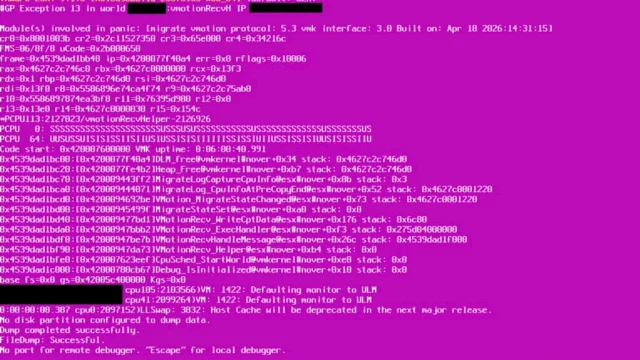
Booting ESXi 8.0 fails with “Error 10 (Out of resources)”
- The server is configured to boot in legacy BIOS mode.
- Boot stops early with red-on-black messages such as “Error 10 (Out of resources) while loading module”, “Requested malloc size failed” or “No free memory”.

The recommended fix is to move the machine to UEFI boot permanently. There will be no future ESXi change that makes legacy BIOS work on such a machine again (KB 313378).
How to move an ESXi host from legacy BIOS to UEFI
- Put the host in maintenance mode while it still runs the older ESXi release.
- Switch the server firmware from legacy BIOS to UEFI (in the server BIOS setup, or in the boot policy on Cisco UCS).
- Reboot and resolve any device compatibility issues. No reinstall is required.
- Check the network uplinks. Changing the boot method can change the order in which physical NICs are identified. On hosts with several NICs, a vSphere Distributed Switch may end up on uplinks that aren’t connected. Confirm that the vDS uplinks match the active vmnics (KB 405083).
- Only then upgrade ESXi.
Why UEFI
UEFI aligns with VMware’s “secure by default” goals and enables:
- UEFI Secure Boot, so the server boots only software trusted by the server manufacturer
- TPM 2.0
- Automatic update of the system boot order during ESXi installation
- Persistent memory, Intel SGX registration, and DPU/SmartNIC support
My recommendations

- Install new ESXi hosts in UEFI mode only.
- Buy new servers with TPM 2.0.
- Before upgrading to ESXi 8.0 or later, verify that the host boots in UEFI mode.
Related: how to boot ESXi on the Cisco UCS M.2 HW RAID boot-optimized controller.