Short answer: In the vSphere Client, select the cluster and open Updates > Image. vCenter runs an eligibility check first. Then you either use the image from a host in the cluster (vCenter 8.0 U3+), import a JSON image, or set one up manually. Finish with Finish image setup and remediate. The switch can’t be reversed. Baselines were deprecated in vSphere 8.0, and in vCenter 9.0 they can only patch ESXi 8.x hosts. You must convert before you move to ESX 9.
vLCM baselines status: deprecated in 8.0, removed for ESX 9
I wrote the first version of this post in 2020, right after upgrading my lab to ESXi 7.0. Back then images were new and optional. Here is what the Broadcom documentation says today:
| Release | Baselines (VUM workflows) | Source |
|---|---|---|
| vSphere 7.0 | Supported. vLCM images introduced as the declarative alternative. | KB 322186 |
| vSphere 8.0 | Deprecated. Still supported in vSphere 8, with removal planned for the next major release. | vSphere 8.0 release notes, KB 322186 |
| vCenter 9.0 | Removed as a way to manage clusters. Baselines only patch ESXi 8.x hosts. ESX 9 hosts can’t be patched or upgraded with them, ISO import and ISO-based upgrades are blocked, and new clusters and standalone hosts are image-managed by default. | VCF 9.0 release notes, KB 379388 |
So an existing baseline-managed cluster with 8.x hosts keeps working under vCenter 9.0, but it can’t reach ESX 9. According to KB 379388, the way around those restrictions is to move from VUM to vLCM images.
Prerequisites and what blocks the conversion
When you start the switch, vCenter runs the Check cluster’s eligibility to be managed with a single image task. Its results come in three types.
Errors (block the conversion)
- A host is not stateful, for example an Auto Deploy stateless host. It must boot from a disk.
- A host runs a version earlier than ESXi 7.0. Upgrade it with an upgrade baseline first.
- VIBs from an unintegrated solution are present. Deactivate the solution and retry.
- The cluster is currently being remediated against a baseline.
Warnings (need action)
- A standalone VIB for which a component exists in the depot. Add that component to the image, or the VIB is deleted during remediation.
- An unknown VIB, with no component in the depot. Import a component that contains it, or it is deleted during remediation.
Other prerequisites
- All hosts from the same hardware vendor.
- The vLCM image privileges.
- For third-party solutions, confirmation from the vendor that they work with vLCM.
- For the “use an image from a host” option: hosts on 7.0 U2 or later and vCenter on 8.0 U3 or later.
- For VCF environments: do this only through SDDC Manager, on VCF 5.2.2 or later or VCF 9 (KB 385617). Don’t convert VCF clusters directly in vCenter.
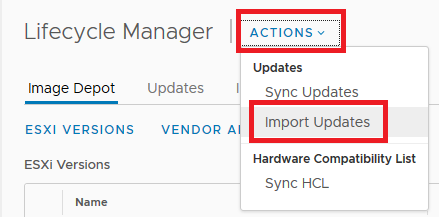
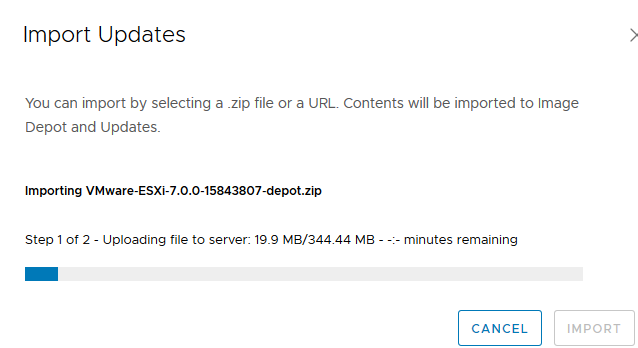
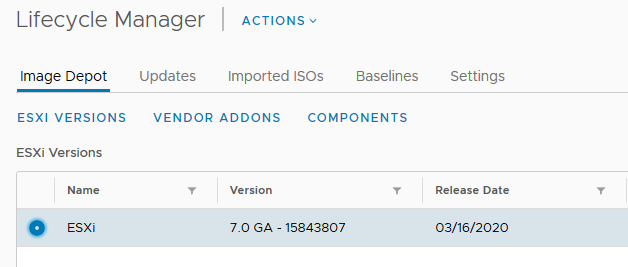
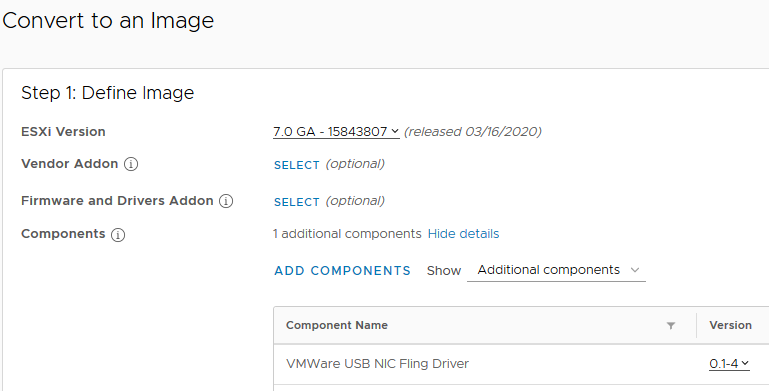
The depot also needs the content you plan to use in the image. On current releases, vLCM no longer downloads from the old public VMware URLs; each customer gets a unique download URL. See KB 390098 if the Software Depot doesn’t show recent releases. Offline, you can import a depot ZIP through Actions > Import Updates. These are my original vSphere 7.0 screenshots:
How to convert vLCM baselines to an image (step by step)
These steps follow the TechDocs procedure for Option 3: Set Up a New Image Manually. Options 1 and 2 start the same way.
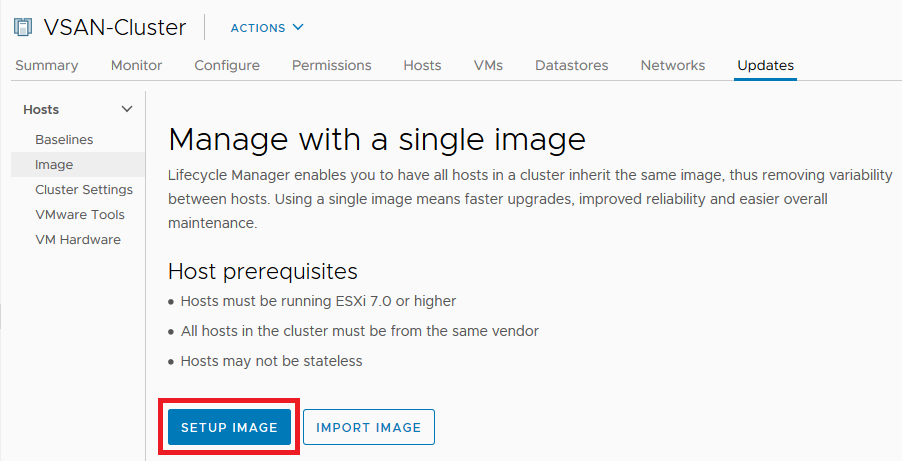
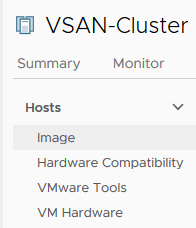
- Open the image setup. In the vSphere Client, select the baseline-managed cluster and go to Updates > Image.
- Choose how to build the image. Pick one of the three options. Set up image manually builds it by hand. Import image takes a JSON file. On vCenter 8.0 U3+, you can also choose one of the “Currently running images in the cluster” and click Proceed with selected image. The eligibility check runs; fix any errors and start again.
- Define the image. In the Convert to an Image pane, select the ESXi Version. Optionally add a Vendor Addon, a Firmware and Drivers Addon (this needs a hardware support manager) and extra Components.
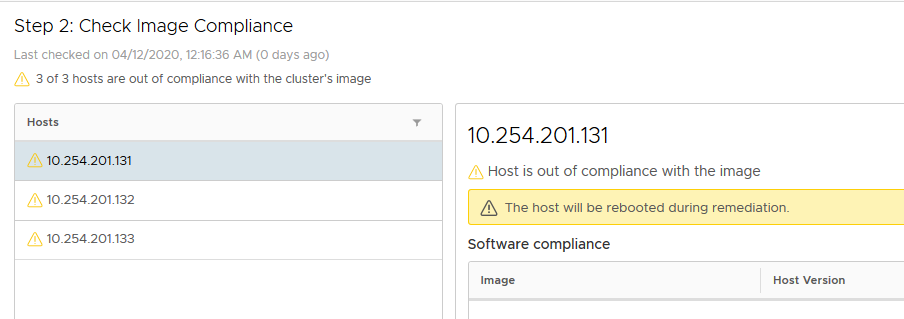
- Validate and save. Click Validate to catch missing dependencies and conflicts, then Save. Saving triggers a compliance check of all hosts against the image.
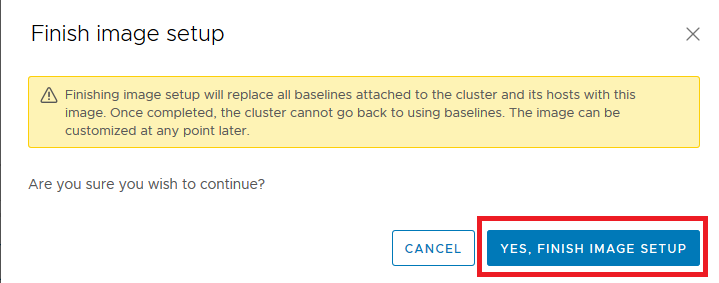
- Finish the setup. Click Finish image setup and confirm with Yes, finish image setup. From now on the cluster is managed by a single image.
- Remediate. Run the pre-check and then Remediate All. Switching the management method alone does not change the hosts; only remediation applies the image.
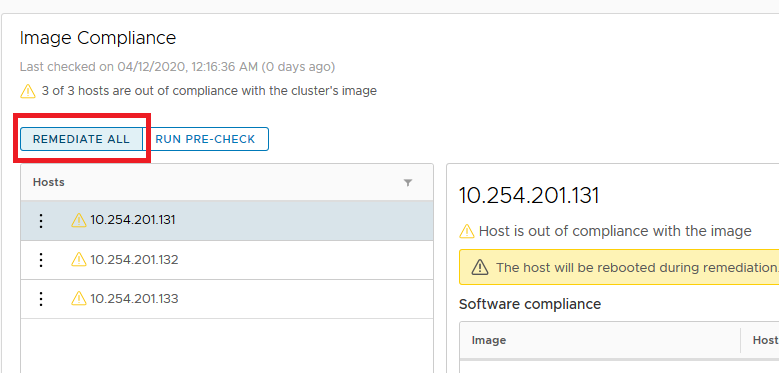
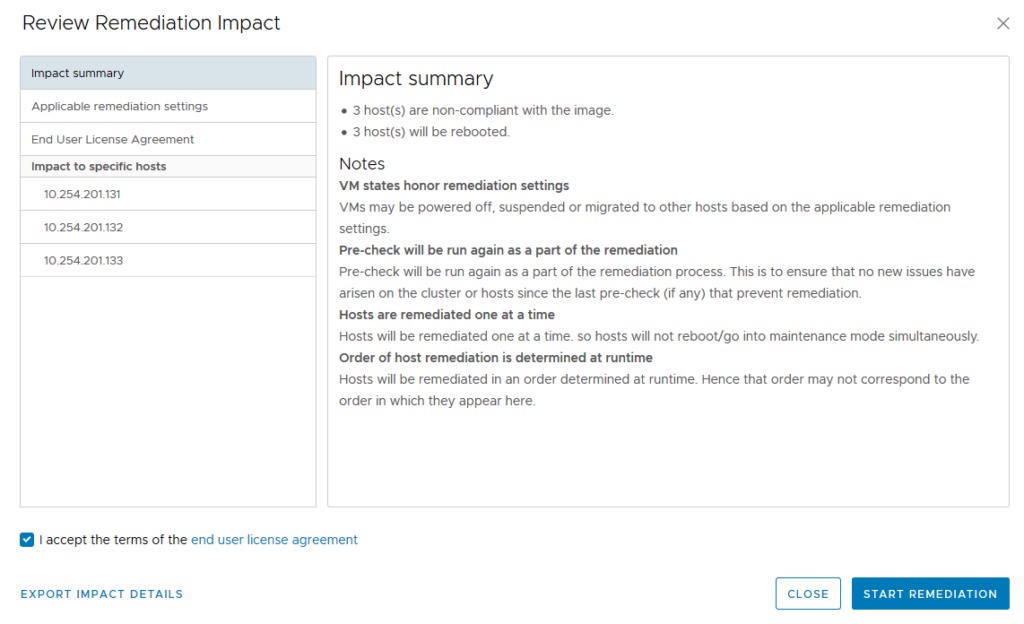
What changes after the switch
- There is no way back. A cluster can’t return to baselines. You can only move hosts into another cluster that still uses baselines.
- Remediation removes what the image doesn’t include. Standalone VIBs and agents of non-integrated solutions are deleted. Put every driver and tool you need into the image first.
- Standalone hosts keep the image only under certain conditions. A host removed from an image-managed cluster keeps the image only when vCenter and ESXi are 8.0 U3+ and NSX, if present, is 4.2 or later. Otherwise it reverts to baselines.
- Unsupported configurations are still possible. If you enable a solution that doesn’t work with vLCM on an empty cluster (Dell EMC VxRail is the documented example), the transition succeeds but the configuration is unsupported.
Sources
- Broadcom TechDocs: Convert a Cluster or a Host That Uses Baselines Into a Cluster or a Host That Uses vSphere Lifecycle Manager Images
- Broadcom TechDocs: Cluster or Standalone Host Eligibility to Use vSphere Lifecycle Manager Images
- Broadcom TechDocs: Option 3: Set Up a New Image Manually
- Broadcom TechDocs: vSphere Lifecycle Manager Images and Baselines (vSphere 9.0)
- VCF 9.0 Release Notes: vSphere product support notes (removal of vLCM baselines)
- VMware vSphere 8.0 Release Notes (deprecation of vLCM baselines)
- Broadcom KB 379388: Managing ESX host lifecycle operations with vSphere Lifecycle Manager Images (vLCM), vCenter 9.0
- Broadcom KB 322186: Managing ESXi host lifecycle operations with vLCM Images
- Broadcom KB 385617: Transition to vSphere Lifecycle Manager (vLCM) Images using SDDC Manager
- Broadcom KB 390098: Authenticated downloads configuration update instructions – VCF