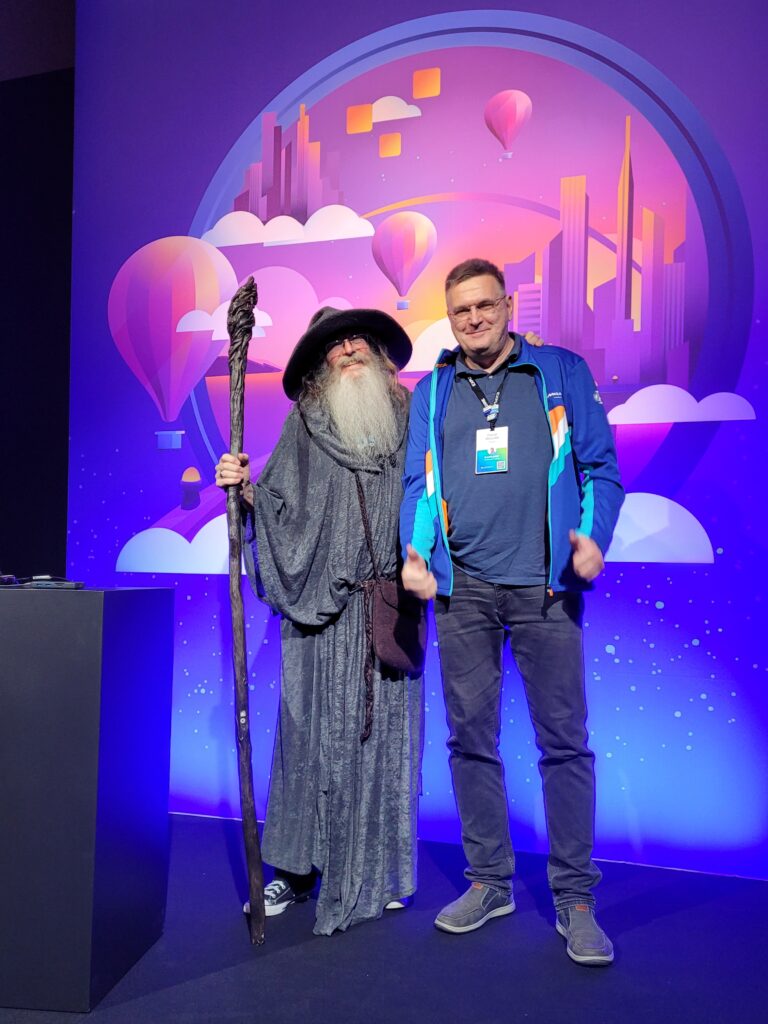
Kicking off the most anticipated enterprise tech event of the year, the VMware Explore 2024 General Session showcases exciting new advancements in private cloud, AI, app delivery and the edge. Catch it here!
Today I’m happy to share that among the range of commercial and open source AI models and services that we support, customers can now also run the Azure AI Video Indexer enabled by Azure Arc on VMware Cloud Foundation on-premises or in Azure VMware Solution.
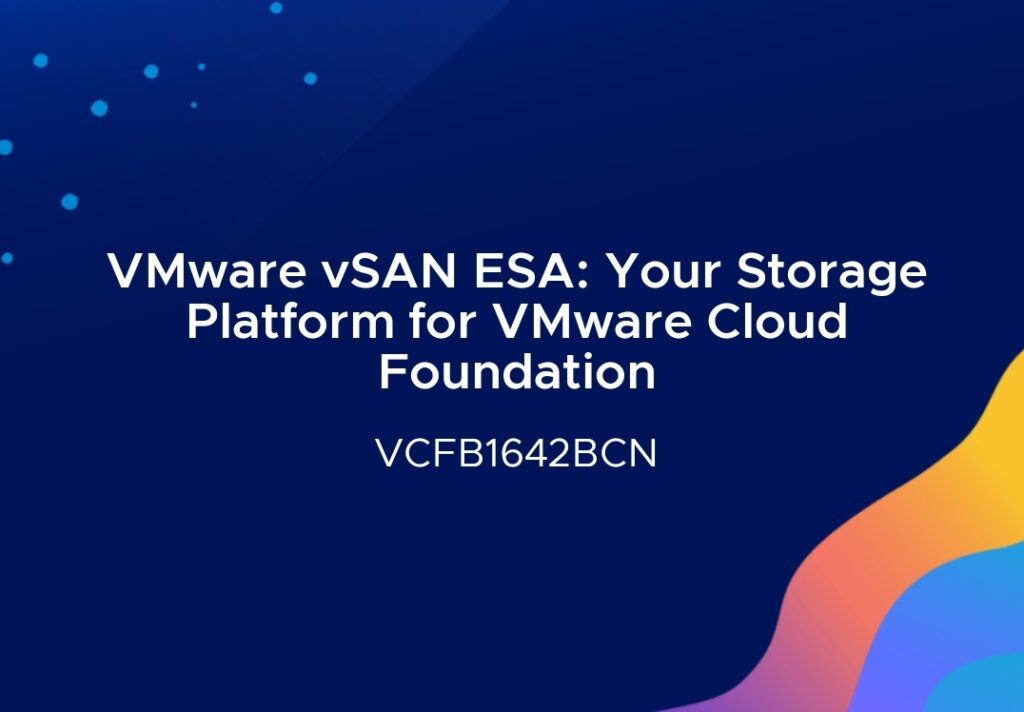
At VMware Explore 2024, the session “VMware vSAN ESA: Your Storage Platform for VMware Cloud Foundation” provided a comprehensive look into how vSAN Express Storage Architecture (ESA) is transforming storage solutions for modern data centers. Led by Duncan Epping and Pete Koehler, this session highlighted the capabilities and benefits of vSAN ESA within VMware Cloud Foundation (VCF).
Key Features of vSAN ESA:
Next-Generation Storage Architecture:
Designed to handle today’s and tomorrow’s workloads with efficiency and resilience.
Offers both aggregated and disaggregated configurations for flexible deployment options.
Performance and Efficiency:
Erasure Coding with RAID-5/6: Delivers the performance of RAID-1 with the space efficiency of RAID-5/6, optimizing capacity while maintaining performance.
Granular Snapshotting: vSAN ESA integrates snapshots at the VM level without impacting performance, unlike traditional LUN-based snapshots.
Data Protection and Management:
Integrated Data Protection: Includes scalable snapshots and simplified recovery options, making it easier to protect and recover VMs.
Protection Groups: Offers flexible and easy-to-manage options for snapshot frequency, retention, and immutability, supporting dynamic VM assignments.
Flexible Deployment:
vSAN Max: Enables disaggregated storage for independent scaling of compute and storage resources, enhancing cost efficiency and operational flexibility.
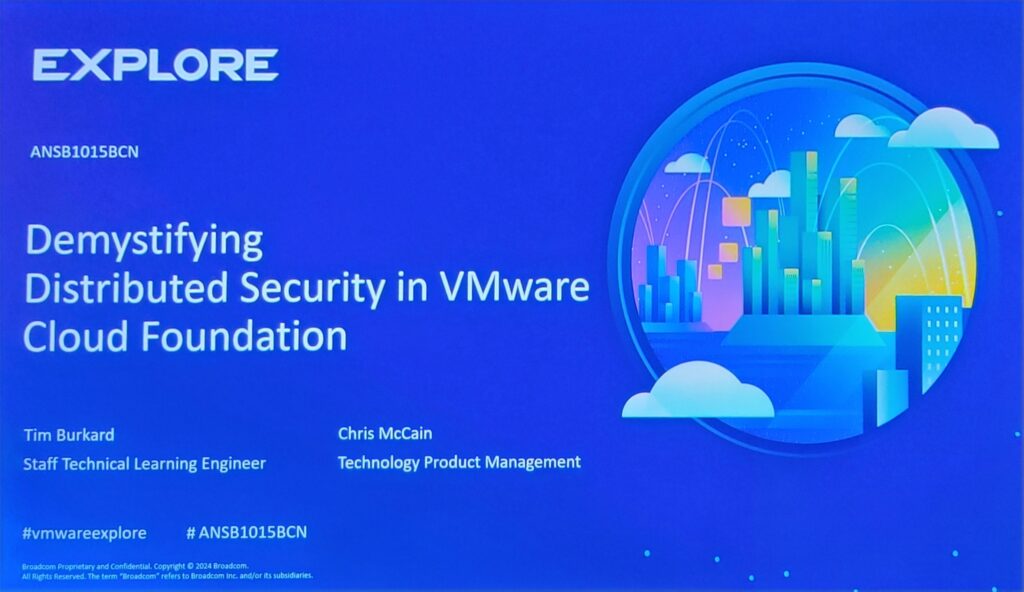
In today’s evolving IT landscape, securing distributed environments is crucial. VMware Cloud Foundation (VCF) addresses these challenges head-on with its Distributed Security model. During the VMware Explore EU 2024 session titled “Demystifying Distributed Security in VMware Cloud Foundation,” experts Chris McCain, Tim Burkard explored the nuances of enhancing security within VCF environments.
Key NOTES:
vDefend Distributed Protection:
This is VMware’s approach to ensuring secure communication between virtual machines (VMs) by enforcing strict security rules. The Distributed Firewall (DFW) policies, integral to vDefend, apply a Zero Trust model, allowing only authorized traffic and rejecting any unauthorized attempts.
Granular Security Policies:
VCF’s Distributed Firewall offers granular control over security policies, allowing IT teams to define rules at both policy and individual VM levels. This flexibility ensures that security is tightly integrated into every layer of the infrastructure.
Intrusion Detection and Prevention:
VMware’s Distributed Intrusion Detection and Prevention (IDP) system proactively monitors and prevents unauthorized activities. The IDP uses an extensive signature database to alert or block threats, ensuring real-time protection across the data center.
Built-in Tools for Validation and Troubleshooting:
Tools like Traceflow and Live Traffic Analysis are pivotal for monitoring and validating security rules. These tools help IT professionals ensure that the DFW is functioning as intended and that traffic flow complies with security policies.
ESXi Hosts: The Data Plane
ESXi hosts, where VMs reside, are integral to enforcing NSX DFW rules. The following CLI commands can be run on ESXi hosts to manage and troubleshoot DFW settings at the host level:
List All the VMs dvFilter Names: Use summarize-dvfilter to list all dvFilters associated with VMs. dvFilters are kernel modules that apply firewall rules to VMs’ network traffic.
View IP and MAC Addresses for a dvFilter: To see the IP and MAC addresses related to a specific dvFilter, the command is vsipioctl getaddrsets -f <dvfilter-name>
List the Firewall Rules Applied on DvFilter: Retrieve the set of firewall rules applied to a dvFilter by executing vsipioctl getrules -f <dvfilter-name>
View Firewall Configuration for a dvFilter: To inspect the firewall configuration for a specific dvFilter, the command is vsipioctl getfwconfig -f <dvfilter-name>
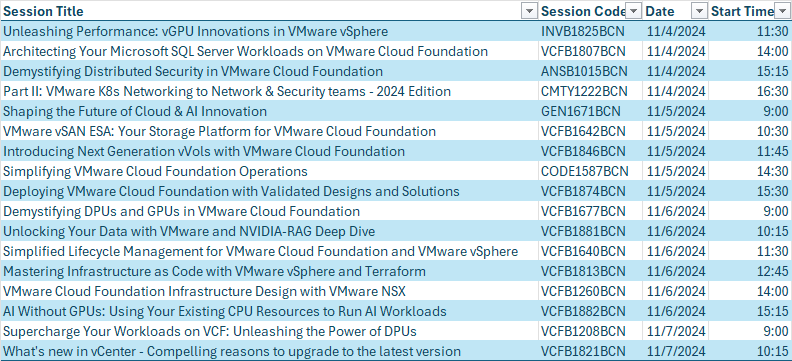
VMware Explore 2024 is just around the corner, and it’s packed with insightful sessions and opportunities to learn from industry experts. With so much to explore, it’s crucial to plan your schedule, stay comfortable, and stay hydrated throughout the event. Here are my top session picks to make the most of your time at the conference.
Quick Tips for Attending:
Wear Comfortable Shoes: You’ll be walking a lot between sessions, so good shoes are a must.
Use the Event App: The VMware Explore app is a great tool for tracking your sessions, finding rooms, and staying updated with event news.
Plan Your Sessions: Take some time to map out the sessions you want to attend so you can maximize your learning.
Drink Plenty of Water: Keep yourself hydrated to stay energized throughout the day.
I am very happy to share that the ESXi-Arm team has just released a brand new version of the popular ESXi-Arm Fling (v2.0), which is now based on ESXi 8.x codebase and specifically using the latest ESXi-x86 8.0 Update 3b release! This is a very exciting update, as the original release of […]
In some older releases of vSAN there is an issue where if applications are using AVX-512 CPU instructions data corruption can occur. This was first reported by customers using DB2 but can occur with other applications as well. Here is the KB describing the problem: […]
Zabbix is an open-source monitoring tool designed to oversee various components of IT infrastructure, including networks, servers, virtual machines, and cloud services. In this post, I will show you how setup Zabbix monitoring with VMware vSpehre infrastructure.
The general guidance and quickest way to recover an ESXi host if you have forgotten or lost the root password is to reset using vSphere Host Profiles if it was managed by vCenter Server or simply reinstall ESXi which would allow you to preserve the existing VMFS volumes along with any workloads [..]