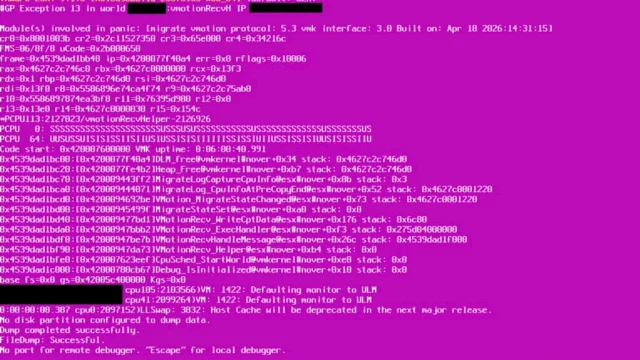
Short answer: if an ESXi host stops at “VMware Hypervisor Recovery” or reports “No hypervisor found”, the host could not load a valid image from its boot device. First check the firmware boot mode and the boot device itself. If the hang started right after a 7.0 Update 2 upgrade on a UEFI host, apply the boot loader workaround from KB 324877. If the image is damaged, roll back with Shift+R (only if the altbootbank still holds the previous build), or reinstall with “Install ESXi, preserve VMFS datastore” and restore the configuration backup.
What the “VMware Hypervisor Recovery” screen means
ESXi 7.0 and later keep the hypervisor in two boot banks on the boot device. According to the ESXi 7.0 system storage documentation, the layout is a System Boot partition (boot loader and EFI modules), Boot-bank 0 and Boot-bank 1 (ESXi boot modules, mounted as /bootbank and /altbootbank) and ESX-OSData (scratch, VMware Tools locker, core dumps, logs). The active bank holds the running build. The other bank holds the build from before the last update.
Broadcom documents the “VMware Hypervisor Recovery” message in one specific case, KB 324877: a UEFI host hangs at the boot loader showing this message after an ESXi install or upgrade. Broadcom does not publish a general definition of the screen. Treat it, and the related “No hypervisor found” error, as a sign that the host could not boot a working image. Look at the boot loader, the boot bank contents, the boot device and the firmware settings, in that order.
VMware Hypervisor Recovery: cause and fix table
| Symptom | Likely cause | Fix | Source |
|---|---|---|---|
| UEFI host hangs at “VMware Hypervisor Recovery” right after upgrading to 7.0 Update 2 | 7.0 U2 boot loader loads EFI files in a way some firmware does not support | Boot the 7.0 U1 installer and copy its boot loader files to the boot partition | KB 324877 |
| “No hypervisor found” | Missing or corrupted ESXi files, failed SD card or disk, boot LUN lost, boot order or boot mode changed | Check boot mode (UEFI vs BIOS) and boot order, check hardware and storage, then reinstall | KB 404825 |
| Host fails or misbehaves after a patch or upgrade | Problem with the new image in the active bank | Shift+R rollback to the build in the altbootbank | KB 316592 |
| Host silently reverts to the old build after an upgrade | Faulty dual SD card RAID mirror, or not enough contiguous space to repartition for the 7.0 layout | Move to supported boot media, or clean install without a datastore on the boot device | KB 418807, KB 426659 |
| Upgrade precheck reports a vFAT bootbank problem, or PSOD while backing up vFAT partitions | Corrupted vFAT boot bank partitions | Repair the partitions with dosfsck | KB 91136 (345227) |
| “Out of resources” when booting a newer release in legacy BIOS mode | Image too large for legacy BIOS boot | Switch to UEFI on the old release first, then upgrade | KB 84233 (313152) |
UEFI boot hang after ESXi 7.0 Update 2 (KB 324877)
KB 324877 covers ESXi 7.0.x. Broadcom states that the way ESXi 7.0 U2 loads EFI files is not supported by some system firmware. The workaround replaces the boot loader on the system boot partition with the one from the 7.0 U1 installer. In outline:
- Boot the host from the ESXi 7.0 U1 installer ISO and open the shell with Alt+F1 (log in as root, no password).
- Identify the boot disk with
ls /dev/disksandpartedUtil getptbl. Partition 1 (systemPartition) is the boot partition. - Back up the existing
BOOTx64.EFI,mboot64.efiandsafeboot64.efi, then copy the versions from/usr/lib/vmware/bootloader-installeronto the boot partition withmcopy. - Reboot from the disk.
Follow the exact commands in the KB, because the device name differs on every host. This only applies to this 7.0 U2 case. It does not fix a damaged boot bank or a failed boot device.
Shift+R: roll back to the previous bootbank
KB 316592 describes the rollback for ESXi 6.x, 7.x, 8.x and ESX 9.x. Reboot the host and press Shift+R while the hypervisor progress bar is loading, not after it finishes. The KB suggests pressing it repeatedly once the “system is preparing to boot” message appears. ESXi then warns that the current hypervisor will be permanently replaced with the older build. Press Y to confirm and Enter to boot.
Rollback only works if the altbootbank still holds a different, working build. Before you rely on it, check the build= line of both banks from the ESXi Shell:
grep build= /bootbank/boot.cfg /altbootbank/boot.cfg
esxcli software profile get
Limits documented in KB 316592, KB 376175 and KB 386377:
- Only one previous state (n-1) is kept. Each upgrade or VIB install or removal discards the older copy.
- After the first reboot following an upgrade, any change that needs another reboot commits the new build to both banks. After that, rollback is gone.
- In an HA cluster, exiting maintenance mode installs the FDM VIB. After an upgrade to 8.0 this discards the previous build (KB 386377). The workaround is to disable vSphere HA before the upgrade.
- You cannot roll back from 7.0 to 6.x because the partition layout changed. Rollback between 7.0, 8.0 and 9.0 is possible.
- Rollback does not revert the tools-light VIB, and it will not help if the boot device itself is failing.
VMware Hypervisor Recovery: “No hypervisor found”
KB 404825 lists the causes: missing or corrupted ESXi files, a failing SD card or disk, a power outage, a boot LUN lost through network or storage problems, a changed boot order, or a changed boot mode. Work through it in this order:
- Confirm the firmware is still in UEFI mode and the ESXi device is first in the boot order.
- Check the hardware logs (iDRAC, iLO, CIMC and similar) for a failed SD module, M.2 device or disk. For boot from SAN, have the storage team check the LUN and its paths.
- Try Shift+R if the other bank has a valid build.
- If nothing else works, reinstall ESXi (next section).
ESXi repair install: reinstall without losing VMs
Broadcom does not document a separate “repair” mode. The documented path is to boot the installer and run it over the existing installation. When the installer finds ESXi and a VMFS datastore on the selected disk, KB 392956 lists three options:
- Upgrade ESXi, preserve VMFS datastore: upgrades the installation and keeps both the settings and the datastore.
- Install ESXi, preserve VMFS datastore: fresh ESXi install that keeps the datastore. The host configuration is lost.
- Install ESXi, overwrite VMFS datastore: wipes the installation and the datastore on that disk.
The TechDocs page for ESX 9.0 interactive upgrade adds that if the datastore cannot be preserved, you can only overwrite it or cancel. In that case, back up the datastore first.
A configuration backup can only be restored to the same build, so reinstall from the same build you backed up (KB 313510, KB 413897). If you need a specific ISO, see the download tip linked below.
Boot device causes
SD card and USB boot media
KB 85685 (now 317631) explains why SD/USB boot devices wear out on 7.0 and later: ESX-OSData takes constant writes and the wear cannot be monitored. SD/USB boot is still supported through VCF 9.0 on previously certified servers. Broadcom recommends a persistent device for OSData, or better, an SSD/NVMe boot device (8.x: 32 GB minimum, 128 GB recommended; 9.x: 128 GB minimum). KB 317891 lists the warnings 7.0 U3 and later raise without one. KB 413897 covers the migration: back up, reinstall the same build on the new disk, fix the boot order, restore.
Corrupted vFAT boot banks
If an upgrade precheck reports a vFAT bootbank problem, see the KB 91136 walkthrough linked below. It covers identifying the boot bank partitions with esxcli storage filesystem list and vmkfstools -P, then checking and repairing them with dosfsck in maintenance mode.
Legacy BIOS vs UEFI
KB 84233 (313152) warns that newer releases may fail to boot in legacy BIOS mode, for example with “Out of resources”. Switch to UEFI while still on the old release, reboot, fix any device naming issues, and only then upgrade. An unexpected BIOS/UEFI mode change is also listed as a cause in KB 404825.
Restore the configuration afterwards
After a clean install, restore the configuration bundle as described in KB 313510. The build must match the backup, and the host UUID should match. From 7.0 U2, a TPM-encrypted configuration cannot be force-restored to different hardware. The ESXi Shell workflow is:
# before the failure (or on a healthy host, regularly)
vim-cmd hostsvc/firmware/sync_config
vim-cmd hostsvc/firmware/backup_config

# on the reinstalled host, same build (check with: vmware -vl)
vim-cmd hostsvc/maintenance_mode_enter
# reboot, copy the bundle to /tmp/configBundle.tgz, then:
vim-cmd hostsvc/firmware/restore_config 0
The restore reboots the host automatically. KB 413897 notes that the bundle does not include SSH keys, custom scripts or third-party agents.
Preventing ESXi boot recovery problems
- Boot from an endurance-rated SSD, NVMe or M.2 RAID device, not SD/USB. At minimum, give OSData a persistent device.
- Run hosts in UEFI mode and switch before a major upgrade, not during it.
- Schedule regular configuration backups with
vim-cmd hostsvc/firmware/backup_configand keep the matching ISO for each build. - Check both boot bank builds before and after an upgrade. If you need a rollback option, validate the new build before any further reboot-requiring change, and consider disabling HA during the upgrade (KB 386377).
- Do not create extra VMFS datastores on the boot device (KB 426659).
Sources
- KB 324877: UEFI booting of ESXi fails and does not progress beyond “VMware Hypervisor Recovery”
- KB 316592 (1033604): Reverting to a previous version of ESXi
- KB 376175: Unable to rollback ESXi version as Bootbank and Altbootbank have the same build number
- KB 386377: Cannot revert ESXi version when upgrading from 7.0 to 8.0
- KB 404825: No hypervisor found on ESXi host
- KB 392956: How to preserve VMFS datastore while upgrading or installing ESXi host
- KB 418807: ESXi Host Rolls Back to Previous Version After Upgrade
- KB 426659: ESXi host rolls back to version 6.7 on the second reboot after upgrading to ESXi 7.0
- KB 317631 (85685): SD card/USB boot device revised guidance
- KB 317891: Persistent storage warnings when booting ESXi from SD-Card/USB devices
- KB 413897: Replacing ESXi boot device from SD card to internal disk
- KB 345227 (91136): “A problem with one or more vFAT bootbank partitions was detected”
- KB 313152 (84233): Deprecation of legacy BIOS support in vSphere
- KB 313510: How to back up and restore the ESXi host configuration
- TechDocs: ESXi System Storage Overview (7.0)
- TechDocs: Upgrade Hosts Interactively (ESX 9.0)
Related on vdan.cz
- A problem with one or more vFAT bootbank partitions (KB 91136)
- Deprecation of legacy BIOS support in vSphere 8.0 (KB 84233)
- Back up and restore ESXi host configuration data
- How to boot ESXi 7.0 on UCS-M2-HWRAID
- How to create a bootable ESXi installer USB flash drive
- Quick tip: how to download an ESXi ISO image for any release
- Recovering an ESXi 7.x/8.x host after forgetting the root password
- ESXi shell commands