vCenter 8 Session Timeout Settings and the 8.0 U3b vSphere Client Idle Session Bug (Fixed in 8.0 U3c)

How to set the vSphere Client session timeout in vCenter 8.0 and 9.x, and why sessions broke after 50 idle minutes on 8.0 U3b until the 8.0 U3c fix.

Short answer: In vCenter 8.0, the vSphere Client session timeout is set in Administration > Deployment > Client Configuration > Edit > Session timeout (minutes, default 120). Alternatively, set session.timeout in /etc/vmware/vsphere-ui/webclient.properties. If sessions die after about 50 idle minutes on vCenter 8.0 U3b (8.0.3.00200), that is a Tomcat bug, not a setting. It is fixed in 8.0 U3c (build 24305161) and later.

vCenter 8 session timeout settings (vSphere Client)

By default, vSphere Client sessions close after 120 minutes of inactivity. You need the Global > Settings privilege to change it.

  1. In the vSphere Client Home menu, select Administration.
  2. Under Deployment, click Client Configuration.
  3. Click Edit. The Edit client configuration dialog opens.
  4. Enter the new value in minutes in Session timeout and click Save.
  5. Log in to the vSphere Client again for the change to take effect.

Alternative: webclient.properties

The same value lives in the vSphere Client properties file on the appliance. The file method is documented for vSphere 7.0 and 9.1:

# /etc/vmware/vsphere-ui/webclient.properties
session.timeout = 60

# apply
service-control --restart vsphere-ui

Uncomment the line if needed. The value is in minutes. The documentation says that a negative value or 0 means the client never times out. That is convenient in a lab but a bad idea in production. The vSphere Security guide recommends setting timeouts so that idle sessions cannot be misused.

vCenter 9 session timeout

The vSphere 9.1 documentation keeps both methods: Home > Administration > Deployment > Client Configuration > Edit, or session.timeout in /etc/vmware/vsphere-ui/webclient.properties. Default is still 120 minutes. After the change, restart the VMware vSphere Client service. Use service-control --restart vsphere-ui over SSH, or VAMI (https://<vcenter>:5480) > Services > VMware vSphere Client > Restart.

VersionUI pathFileApply
vCenter 8.0Administration > Deployment > Client Configurationwebclient.properties (session.timeout)Re-login (UI); restart vsphere-ui (file)
vCenter 9.xAdministration > Deployment > Client Configuration/etc/vmware/vsphere-ui/webclient.propertiesRestart VMware vSphere Client service

What went wrong in vCenter 8.0 U3b (8.0.3.00200)

vCenter Server 8.0 Update 3b (17 Sep 2024, build 24262322, patch VMware-vCenter-Server-Appliance-8.0.3.00200-24262322-patch-FP.iso) upgraded Apache Tomcat to 9.0.91. That Tomcat version changed the default of org.apache.catalina.connector.RECYCLE_FACADES from FALSE to TRUE. As a result, a vSphere Client session left idle for more than 50 minutes became invalid (PR 3439359). You could not log in or out, or use the client in that browser, until you cleared all cookies.

Symptoms listed in Broadcom KB 377734, usually after 1 to 2 idle hours:

  • The loading circle keeps spinning, and session timeouts occur.
  • Inventory errors: You have no privileges to view this object or it is deleted.
  • The login button is greyed out, or login fails with An error occurred while fetching identity providers.
  • ServiceClosedException: AsyncTokenProvider has been closed in /var/log/vmware/vsphere-ui/vsphere_client_virgo.log and /var/log/vmware/apig/apigw.log.

Raising the session timeout does not help here. The session breaks because of the Tomcat change, not because the configured timeout expires.

The fix: vCenter 8.0 U3c or later

vCenter Server 8.0 Update 3c (09 Oct 2024, ISO build 24305161, patch VMware-vCenter-Server-Appliance-8.0.3.00300-24305161-patch-FP.iso) contains only this fix (PR 3439359). Any later 8.0 U3 patch also includes it. Download the patch from the Broadcom Support Portal; this requires a login with an entitled account. If you patch now, go straight to the latest 8.0 U3 build rather than to U3c.

Workaround for 8.0 U3b (KB 377734)

If you cannot patch yet, disable RECYCLE_FACADES for the vSphere Client. SSH to vCenter as root:

root@vcsa-home [ ~ ]# cp /usr/lib/vmware-vsphere-ui/server/conf/catalina.properties /root/catalina.properties.bak

root@vcsa-home [ ~ ]# echo "org.apache.catalina.connector.RECYCLE_FACADES=false" >> /usr/lib/vmware-vsphere-ui/server/conf/catalina.properties

root@vcsa-home [ ~ ]# service-control --restart vsphere-ui

I ran exactly this on my home lab vCenter before 8.0 U3c was out. It only restarts the vSphere Client service.

Same symptoms on a newer build?

KB 377734 says that if you see this behaviour on a later version, you should hide third-party client plug-ins to find the cause. Go to Administration > Solutions > Client Plugins, select the third-party plug-in and click HIDE. This removes the plug-in’s UI extensions while its service keeps running.

Sources

Related on vdan.cz

Quick Tip – Using PowerCLI to query VMware…

Quick Tip – Using PowerCLI to query VMware…

One of the most powerful and versatile VM management capability in vSphere is the Guest Operations API, providing a rich set of operations from transferring files to/from the guest to running commands directly on the guest as if you were logged in! An easy way to consume the Guest Operations API […]


Broadcom Social Media Advocacy

Quick Tip – SSH Server, Client & Authorized Key…

Quick Tip – SSH Server, Client & Authorized Key Configurations for ESXi 7.0 Update 1 and later

Quick Tip – SSH Server, Client & Authorized Key…

The general best practice is to disable SSH on your ESXi host by default and if/when you need access, you can turn it on temporarily and disable it when you have completed your task. For users that need to modify the default SSH configurations whether that is on the server side, client side or setting […]


Broadcom Social Media Advocacy

Intel Skylake and ESX 9: Skylake-SP Supported in Deprecated Mode for VCF 9.x, Not Beyond

Is Intel Skylake supported in ESX 9? Skylake-SP runs in Deprecated mode for all VCF 9.x (KB 428874), not beyond. Skylake-W stays discontinued.

Illustration of an Intel Skylake server CPU reaching end of support in vSphere

Short answer: Yes, with limits. Broadcom KB 428874 was updated on 18 September 2026. Intel Skylake-SP (Xeon Scalable 1st generation: Platinum 8100, Gold 6100/5100, Silver 4100, Bronze 3100) is now supported in Deprecated mode for all of VCF 9.x, including 9.0 GA. Support depends on BCG listing and OEM hardware support. It will not be extended beyond 9.x. Skylake-W (Xeon W-2100) remains discontinued.

This post covers Skylake specifically. For the general installer warning (“may not be supported in future ESXi releases”) and the full CPU tables, see KB 82794 explained.

Intel Skylake ESXi 9 support at a glance

Skylake variantBCG CPU seriesCPU Info / CPUIDKB 318697 status for 9.x
Skylake-SPXeon Platinum 8100, Gold 6100/5100, Silver 4100, Bronze 31006.55.4 / 0x00050654See KB 428874: Deprecated mode for VCF 9.x
Skylake-DXeon D-21006.55.4 / 0x00050654See KB 428874
Skylake-SXeon E3-1200-v5, E3-1500-v56.5E.3 / 0x000506E3See KB 428874
Skylake-WXeon W-21006.55.4 / 0x00050654Discontinued

Note: the text of KB 428874 names only Skylake-SP explicitly. KB 318697 points the Skylake-D and Skylake-S rows to it as well. If you run Xeon D-2100 or E3 v5 systems, check the BCG listing for your exact server model. The other VCF 9 hardware checks (I/O devices, deprecated drivers, vSAN ESA) are in How to check VCF 9 hardware compatibility.

How Skylake support changed from vSphere 8 to VCF 9.x

  • vSphere 8.x: Skylake was on the deprecation list. The ESXi 8 installer warned that the CPU may not be supported in future releases, and installation continued. The original version of this post (October 2024) covered that stage.
  • VCF 9.0 GA: Skylake-SP was discontinued and not listed in the BCG for 9.0. In February 2026, Broadcom’s VCF blog still said Skylake needed an RPQ, with “VCF Software Only” support on approval.
  • KB 428874, 4 July 2026: the KB added Skylake-SP support for VCF 9.1.x.
  • KB 428874, 18 September 2026: support was expanded to VCF 9.x, including 9.0 GA. No TQ/RPQ is required for certain OEM server models marked “VCF Supported. Confirm w/ Vendor”.

Advice from older posts and forums, such as “Skylake does not install on ESX 9” or “file an RPQ”, may be out of date. Check the KB’s update date before you decide.

What Deprecated mode means for an Intel Skylake server

  • Deprecated means still supported. Per KB 318697, the CPU series is supported through the life of the VCF release, its updates and patches, or until End of General Support.
  • The OEM must list the server model in the Broadcom Compatibility Guide. KB 428874 links a BCG search for Skylake systems marked “VCF Supported. Confirm w/Vendor” on ESXi 9.0 and 9.1.
  • “VCF Supported. Confirm w/Vendor” means no further system-level driver enhancements and best-effort fixes or workarounds for the VCF software only.
  • Hardware, BIOS, firmware and microcode support comes from the server OEM and Intel under your contract with them. If you have no such support, you carry the risk.
  • vSAN OSA and ESA ReadyNodes with Skylake-SP are also in Deprecated mode and still supported.

Installing or upgrading ESX 9 on Skylake-SP

KB 428874 says the specific install and upgrade paths for VCF 9.x are described in its attached document, ESX_9.x_Install_Upgrade_using_OVERRIDE_on_Skylake_CPU_based_Servers-v1.3-09182026.pdf. Download it from the KB page and follow it for your path (fresh install, ESX upgrade, or a VCF-managed upgrade). I have not reproduced its steps here because they are versioned and still changing. This is Broadcom’s supported procedure. Don’t confuse it with the unsupported homelab boot option allowLegacyCPU=true.

Is it Skylake or Cascade Lake? Check the stepping

Skylake-SP and Cascade Lake-SP use the same family and model (hex 6.55, decimal model 85). Only the stepping tells them apart: 4 is Skylake-SP, and 6 or 7 is Cascade Lake. Cascade Lake is Deprecated in 9.x and listed as Discontinued for the next major release.

esxcli hardware cpu list
# look at: Brand, Family, Model, Stepping (decimal values)
# Family 6, Model 85, Stepping 4    -> Skylake-SP (6.55.4)
# Family 6, Model 85, Stepping 6/7  -> Cascade Lake (6.55.6 / 6.55.7)

What happens after 9.x

KB 428874 is explicit: Skylake-SP support will not be extended to VCF releases beyond 9.x. In KB 318697’s definitions, a “future major release” is the release after the 9.x series. The same table lists Cascade Lake, AMD EPYC 7001 (Naples) and 7002 (Rome), Coffee Lake Xeon E-2100/E-2200 and Atom C3000 as discontinued in that release. For planning:

  1. Inventory hosts by CPU stepping, not only by server model.
  2. Treat Skylake-SP hosts as “last stop: VCF 9.x” and track the 9.x End of General Support date in the Broadcom Product Lifecycle Matrix.
  3. Confirm OEM hardware and firmware support for the remaining lifetime. KB 428874 puts this responsibility on the OEM and Intel.
  4. Plan the refresh so the cluster does not block the next major upgrade. Avoid mixing in new Cascade Lake purchases, which hit the same wall.

Sources

Related on vdan.cz

Cisco UCS VMware-v2 Adapter Policy (UCSM 4.3(4a)): Values, VIC Support and When to Use It

What the UCSM 4.3(4a) VMware-v2 adapter policy sets on Cisco VIC (1 TX, 8 RX, 4096 rings, RSS) and when to use it vs VMWare or VMWarePassThru.

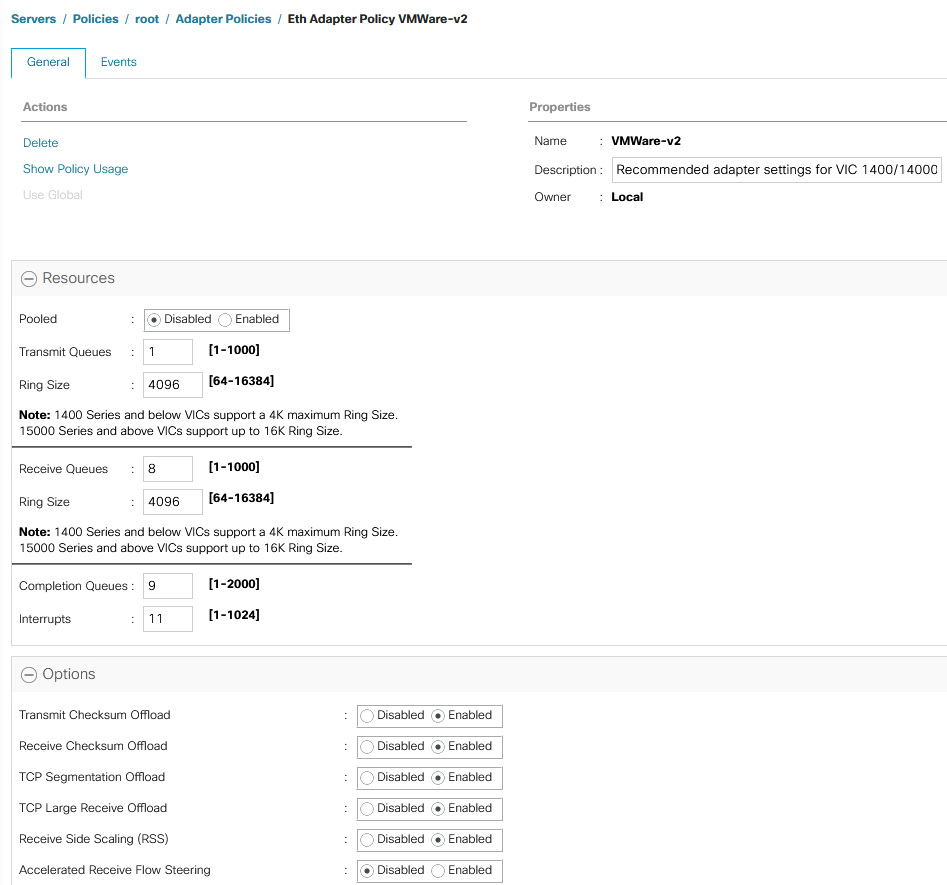
Short answer: The VMware-v2 adapter policy is a system-provided Ethernet adapter policy that Cisco added in UCS Manager 4.3(4a). It builds Cisco’s recommended ESXi settings into a default: 1 TX queue, 8 RX queues, 4096-entry TX and RX rings, 9 completion queues, 11 interrupts and RSS enabled. The release notes cover VIC 1400, 14000 and 15000 adapters. Use it for ordinary ESXi vNICs instead of the old “VMWare” policy. VMWarePassThru is only for VM-FEX.

I wrote this post in October 2024, when 4.3(4a) shipped. We had been running almost the same values in our own custom policy for years; the one difference was 12 interrupts instead of 11. This September 2026 update checks the values against Cisco’s current documentation and adds the upgrade caveats.

Cisco UCS Manager 4.3(4a) Ethernet adapter policy settings for the VMware-v2 policy on a Cisco VIC

What the VMware-v2 adapter policy is

The UCS Manager 4.3 release notes say that from 4.3(4a), “new optimized adapter policies are available for Windows, Linux, and VMware operating systems, for the Cisco UCS VIC 1400, 14000 and 15000 series adapter”. Cisco’s VIC 15000 best-practices white paper explains what that means: the recommended adapter parameters “have now been built into new system provided adapter policies, suffixed with ‘-v2′”. Intersight Managed Mode gained the same policies at the same release level.

The main point is that you no longer need a hand-built custom policy for the standard ESXi RSS configuration. Select VMWare-v2 on the vNIC or vNIC template and you get Cisco’s baseline.

VMware-v2 adapter policy values

These are the ESXi values in Cisco’s “Recommended adapter policy for the best performance with RSS” (VIC 15000 white paper, Table 3). The v2 policies are built from this table.

ParameterVMware-v2 / Cisco ESXi recommendation
Transmit queues1
TX ring size4096
Receive queues8
RX ring size4096
Completion queues9 (TX + RX)
Interrupts11 (CQ + 2)
Receive Side Scaling (RSS)Enabled

A note on interrupts: the UCS Manager 4.3 Network Management Guide gives the formula as “(Completion Queues + 2) rounded up to nearest power of 2”, which would be 16. The white paper uses 11 for ESXi and gives 16 as its own worked example. Both are Cisco documents. VMware-v2 uses 11. Our custom policy used 12 for years without problems.

Ring size and RX queue limits

  • VIC 1400 and 14000 series support a ring size of up to 4096 (4K). This is the maximum, and VMware-v2 already uses it.
  • VIC 15000 series and later support ring sizes up to 16384 (16K). If you want more than 4096, you need a custom policy.
  • RSS spreads receive processing across CPU cores and is set per vNIC through the adapter policy. Cisco states that most ESXi versions support up to 16 RX queues (ESXi 6.0 supports 8). The Intersight best-practices guide recommends 16 RX queues for ESXi 8.0. Again, going above the v2 default of 8 requires a custom policy.

Which Cisco VIC adapters use it

The release notes and the Network Management Guide name the VIC 1400, 14000 and 15000 series for the 4.3(4a) optimized policies. The VIC 15000 white paper words the v2 policies as being for operating systems “that use VIC 15000 adapters”. Older VIC 1200 and 1300 adapters are not named.

VMware-v2 vs VMWare vs VMWarePassThru

PolicyUse it for
VMWare-v2Standard ESXi vNICs (management, vMotion, VM traffic, NFS/iSCSI) on VIC 1400/14000/15000 with UCSM 4.3(4a) or later. RSS with 8 RX queues.
VMWareThe older system policy. Keep it only if you deliberately want the old values. Compare both policies under Servers > Policies > root > Adapter Policies before switching.
VMWarePassThruCisco’s system policy for VM-FEX in high-performance mode (dynamic vNICs). Not for normal static vNICs.
Custom policyNeeded for GENEVE offload (disabled by default in every adapter policy), 16 RX queues, or VIC 15000 rings above 4096.

For NSX host transport nodes, Cisco’s recommended GENEVE policy is different from VMware-v2: 1 TX queue, 8 RX queues, 4096 rings, 16 completion queues, 32 interrupts, RSS on and GENEVE offload enabled.

How to apply the VMware-v2 adapter policy

  1. Upgrade the UCS domain to 4.3(4e) or later (see the upgrade note below).
  2. In UCS Manager, open Servers > Policies > root > Adapter Policies and check the values of VMWare-v2.
  3. In the vNIC template, or in the vNIC of the LAN connectivity policy or service profile, set Adapter Policy to VMWare-v2.
  4. UCS Manager shows whether the change needs a server reboot. If it does, the reboot follows the service profile’s maintenance policy, so put the ESXi host into maintenance mode first.
  5. Verify on the ESXi host with the commands in Cisco’s vNIC tuning guide:
vsish -e get /net/pNics/vmnic0/txqueues/info
vsish -e get /net/pNics/vmnic0/rxqueues/info
esxcli network nic ring current get -n vmnic0

Upgrade note: 4.3(4a) to 4.3(4d) are deprecated

Cisco has deprecated UCS Manager 4.3(4a), 4.3(4b), 4.3(4c) and 4.3(4d), and their firmware files are no longer available. Cisco recommends 4.3(4e) or later. Two field notices are behind this. FN74201: UCS Manager can become inaccessible after an upgrade with integrated S3260 servers. FN74209: virtual Fibre Channel interfaces may flap. At the time of writing the newest 4.3 maintenance release is 4.3(6j), and Cisco also publishes UCS Manager 6.0.

Sources

Related on vdan.cz

How RX queues per vNIC decide whether a HANA vMotion slows down the NFS log writes on VIC 1380 and VIC 15231 is simulated in SAP HANA on VCF 9: TDI network design and vNIC simulator.

ESXi Live Patch: Patching ESXi Without a Reboot (8.0 U3, 9.0, 9.1) and Which Updates Qualify

ESXi Live Patch applies eligible patches with no reboot or maintenance mode. Requirements, limits, and which 8.0 U3, 9.0 and 9.1 releases are live-patchable.

Short answer: Yes, you can patch ESXi without a reboot, but only for releases that Broadcom marks as Live Patchable. You also need vCenter and every host on 8.0 Update 3 or later and a cluster managed by a vSphere Lifecycle Manager (vLCM) image, with Live Patch turned on in remediation settings. Most ESXi updates still need a reboot. Check the Live Patchable field in each release note before you plan a no-downtime window.

What ESXi Live Patch does

Live Patch arrived in vSphere 8.0 Update 3. At first it covered VMX-related security fixes, meaning the process that runs each virtual machine. Qualified hosts stay out of maintenance mode, don’t reboot, and don’t need to migrate VMs (ESXi 8.0 U3 release notes). Running VMs switch to the patched VMX through Fast Suspend and Resume (FSR). VCF 9.0 added user-space live patching and live patching of NSX transport nodes, because the NSX kernel modules now ship with ESX (What’s New in vSphere 9.0).

Which ESXi updates are live-patchable

A release is live-patchable only when its release notes say so. The table lists what the Broadcom release notes state as of September 2026:

ReleaseBuildDateLive Patchable
ESXi 8.0 U3b to 8.0 U3jvariousSep 2024 to May 2026Not marked; plan a reboot
ESXi 8.0 U3k2559570829 Jul 2026Yes (security only)
ESX 9.0.0.01002481347215 Jul 2025Yes (security only)
ESX 9.0.2.01002559502529 Jul 2026Yes (security only)
ESX 9.1.0.0100254334605 Jun 2026Yes (includes NSX kernel modules)
ESX 9.1.0.02002555799913 Jul 2026No, reboot required
ESX 9.1.1.0257144783 Sep 2026No, reboot required

There’s a pattern. Small, security-only patch releases can be live-patchable. Update and bugfix releases that change drivers or the kernel are not. On the 9.x release notes the build details for live-patchable releases also show Host Reboot Required: No and Virtual Machine Migration or Shutdown Required: No. Sources: ESX 9.0.0.0100, ESX 9.1.0.0100, ESXi 8.0 U3k.

Requirements

  • vCenter and all ESXi hosts in the cluster on 8.0 Update 3 or later. ESXi 7.0 U3 is not supported.
  • The cluster is managed with a single vLCM image. Baselines don’t work.
  • vSphere DRS is enabled, and the parallel remediation setting is turned off.
  • The host is eligible for that specific live patch according to the vLCM image depot.
  • No DPUs (vSphere Distributed Services Engine). Hosts with TPM devices are not compatible on 8.0 U3; Broadcom lists them as compatible starting with vSphere 9.1.

These come from Broadcom KB 419942 and the TechDocs page Configuring vSphere Lifecycle Manager for Live Patches.

VMs that still need attention

VMs that can’t use FSR have to be migrated or power-cycled before they pick up the patched VMX. These VMs raise compliance warnings but don’t block remediation:

  • Fault Tolerance VMs
  • DirectPath I/O (passthrough) VMs
  • vSphere Pods
  • Shared-disk clusters, for example SQL Server failover cluster instances

How to apply a live patch

  1. Import the live-patchable release into the vLCM depot and update the cluster image to it.
  2. In the cluster’s vLCM remediation settings, enable Live Patch and turn off parallel remediation.
  3. Run the remediation pre-check. It lists the hosts that qualify for a live patch.
  4. Remediate. Qualified hosts are patched in place. Hosts that fail a prerequisite fall back to the usual maintenance mode and reboot, even with the Live Patch setting on (KB 452778).

On vSAN compute clusters, ESX 9.1.0.0100 has a known issue where the live patch pre-check fails with The health check failed to complete. Read the known issues in the release notes before you start.

Related on vDan

Further reading

vSphere Client Instability After vCenter 8.0.3.00200 (8.0 U3b): Moved

This note moved. The full article covers the vCenter 8.0 U3b idle session bug, KB 377734, the 8.0 U3c fix and vCenter session timeout settings.

This note has been merged into a single, updated article.

After upgrading to vCenter Server 8.0.3.00200 (8.0 Update 3b), the vSphere Client could become unresponsive after a long idle period. The cause was a changed Tomcat default (RECYCLE_FACADES), described in Broadcom KB 377734. It is fixed in vCenter 8.0 Update 3c and later.

The full article covers the symptoms, the KB workaround, the fixed builds and how to set the vSphere Client session timeout in vCenter 8.0 and 9.x:

vCenter 8 Session Timeout Settings and the 8.0 U3b vSphere Client Idle Session Bug (Fixed in 8.0 U3c)

Quick Tip – Monitoring ESXi remote syslog…

Quick Tip – Monitoring ESXi remote syslog…

When an ESXi host is unable to forward its logs to a remote syslog server, a VMkernel Observation (VOB) is automatically raised by the host and it can be used to proactively alert administrators, which has been possible since ESXi 5.0 …. per this blog post from 2012 after some Googling! 😅😂 […]


Broadcom Social Media Advocacy

ESXi on ASUS NUC 14 Pro (Revel Canyon)

ESXi on ASUS NUC 14 Pro (Revel Canyon)

The ASUS NUC 14 Pro (formally known as Revel Canyon) is the first ASUS-based NUC since the acquisition of the NUC Division from Intel last fall. I know many of my readers have been requesting a review of the new ASUS NUCs, but to be honest, it has been pretty difficult to get samples directly […]


Broadcom Social Media Advocacy

Useful NVMe Tiering reporting using vSphere 8.0…

Useful NVMe Tiering reporting using vSphere 8.0 Update 3 APIs

Useful NVMe Tiering reporting using vSphere 8.0…

After successfully enabling the NVMe Tiering feature, which was introduced in vSphere 8.0 Update 3, you can find some useful details about your NVMe Tiering configuration by navigating to a specific ESXi host and under Configure->Hardware and under the Memory section as shown in the screenshot below. There is quite a bit of information that […]


Broadcom Social Media Advocacy